

Contacts
The Contacts tab is where you can find your contacts to see their status and details, send messages, or make outbound calls. You can send a message or make an outbound call to a given phone number, an available agent, or a contact in one of the contact-sources available in your solution. When sending a message or making a call, you must first choose among your available search sources (irrelevant if you are entering a given number to call).
To send a message you must click on the Send Message button (requires a setup)
To make an outbound call you must be logged on. When a call is initiated, a new Callout tab is opened. The system will first call you upon the number you are logged on with (or your Softphone if logged on with that). When you are connected, the system will call the number/agent/contact you want to call.
When in an outbound call, most of the call handling functionality is similar for an incoming call. See the following chapters Receiving a call and Making a call for further details.
Talk about different sources of contacts[ Catalog, Teams etc] Can the agent sort the contacts when there are multiple hits?
Can the agent have his own contact list?
Can the agent list contacts from a dept?
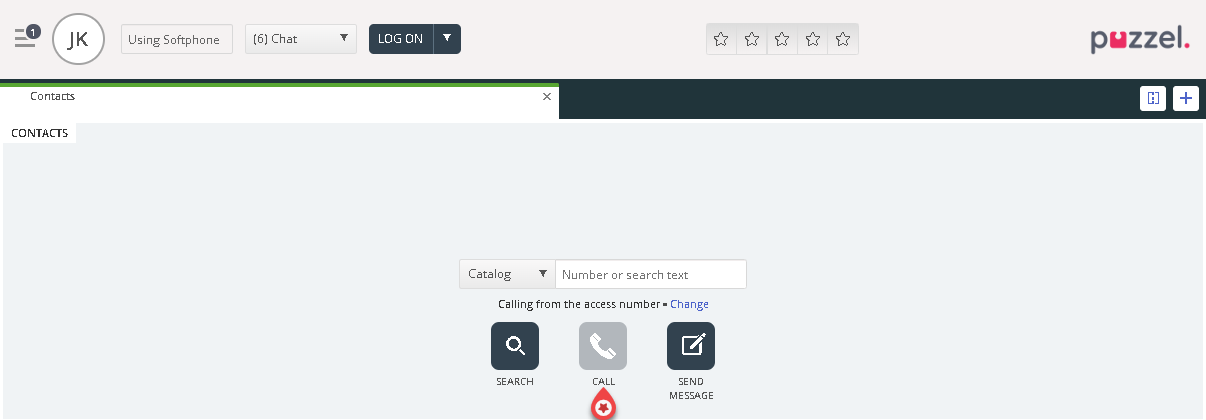
How to call a given number?
Chose any search source, enter the number you want to call and click on the call button.
How to call an agent?
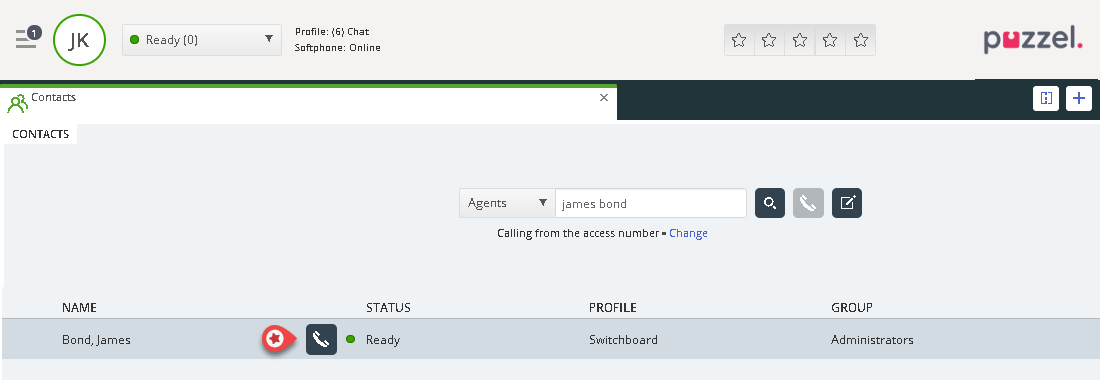
Choose Agent as a search source, enter the name of the agent you want to call, and press enter or click on the search button. You will now see the result of your search. Choose the relevant agent from the list (if more than one hit) and click on the belonging to call-button.
How to call a contact?
To call a contact (not an agent), choose the relevant search source ("Catalog", "Skype for Business" or "Customers") and enter your search criteria followed by pressing Enter or the Search button. You will now see the result of your search. Choose the relevant agent from the list (if more than one hit) and click on the belonging to call-button.
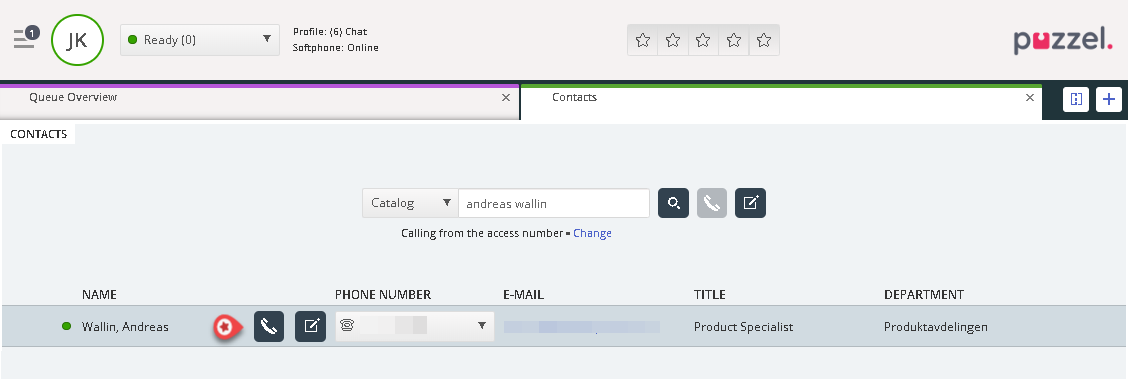
You can also add/edit/delete an event for contacts in a catalog search source if you are allowed access by your admin.
How to send a message?
A message can be sent as an SMS and/or e-mail as long as you have access. Both are optional features that require separate setups. If you don’t have access to send either SMS or e-mail, the “Send message” button is hidden.
To send a message to a given number or e-mail address, you can click on the “Send message” button in the Contacts tab and enter the phone number and/or e-mail address, together with the message. You can also search for a contact and click on the belonging to “Send message” button.
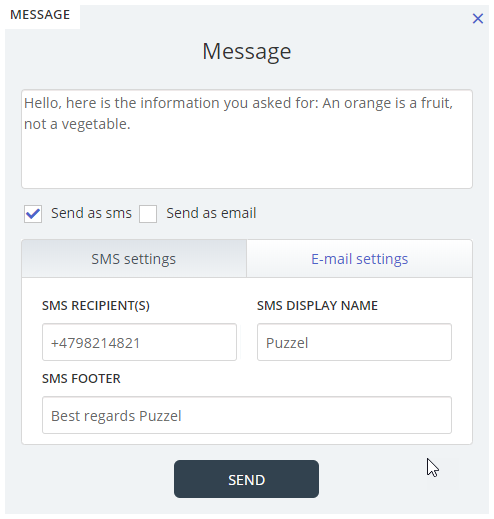
If you have access to both send messages as SMS and e-mail, you can choose to send the message as one or both.
When in an incoming call, the “Send message” button will also appear in the calls request tab.