

Dashboard
Dashboard overview
This view brings the most important search signals into one place. Use the top section to understand what is happening, then use the bottom section to decide what to improve next.
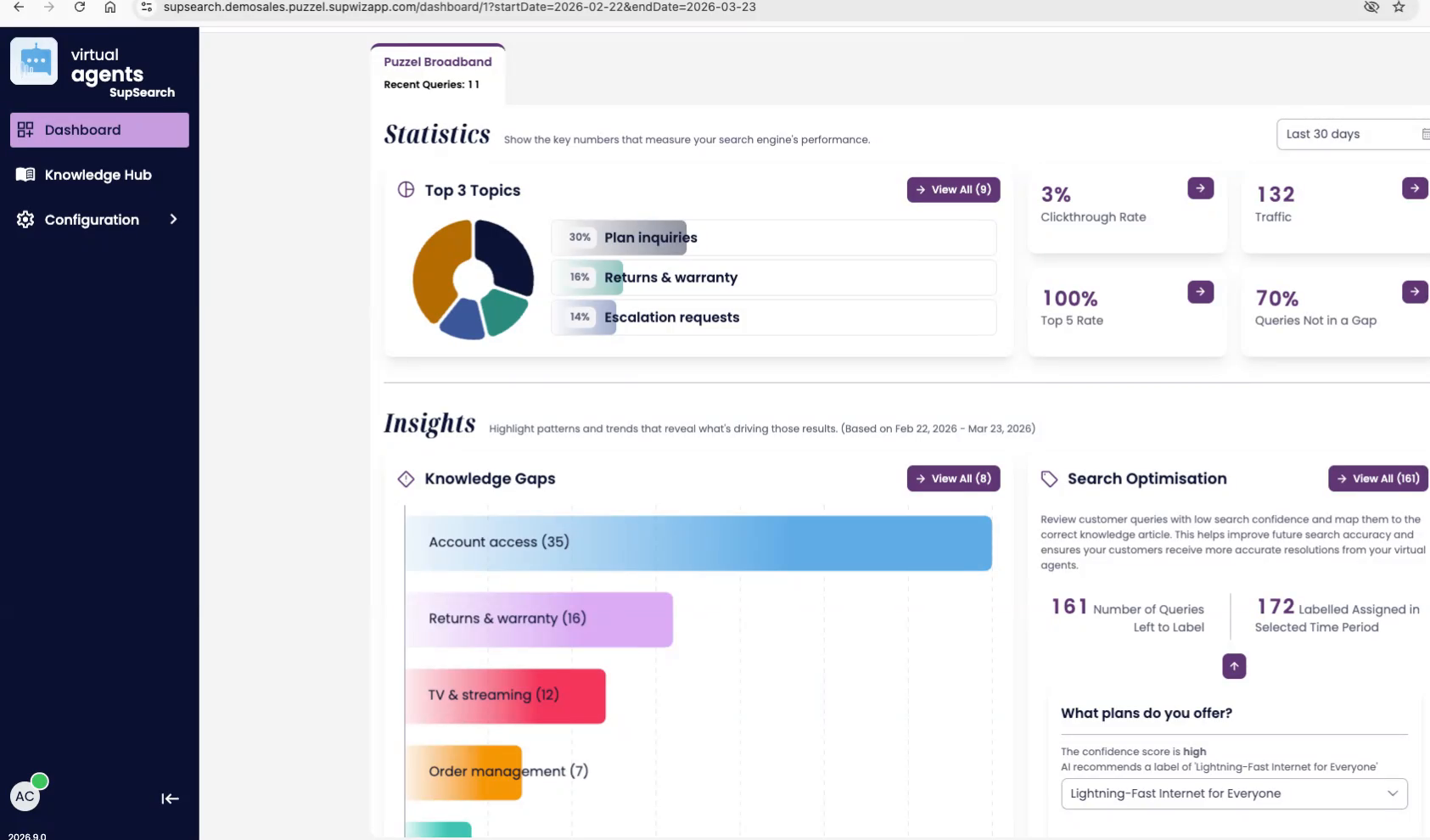
Figure 1. The dashboard combines statistics on top with actionable insights below.
Top section: Statistics
The statistics area is designed for fast monitoring. It answers four questions: which search engine you are looking at, what time period is selected, how users are engaging, and how much of demand is already covered by the knowledge base.
| Search engine tabs If multiple search engines are available, they appear as tabs at the top. They are ordered by query volume so the busiest engine appears first. | Time period selector Use the selector on the right to choose the reporting window, such as last 30 days or this month. Every metric and chart updates to match that selection. |
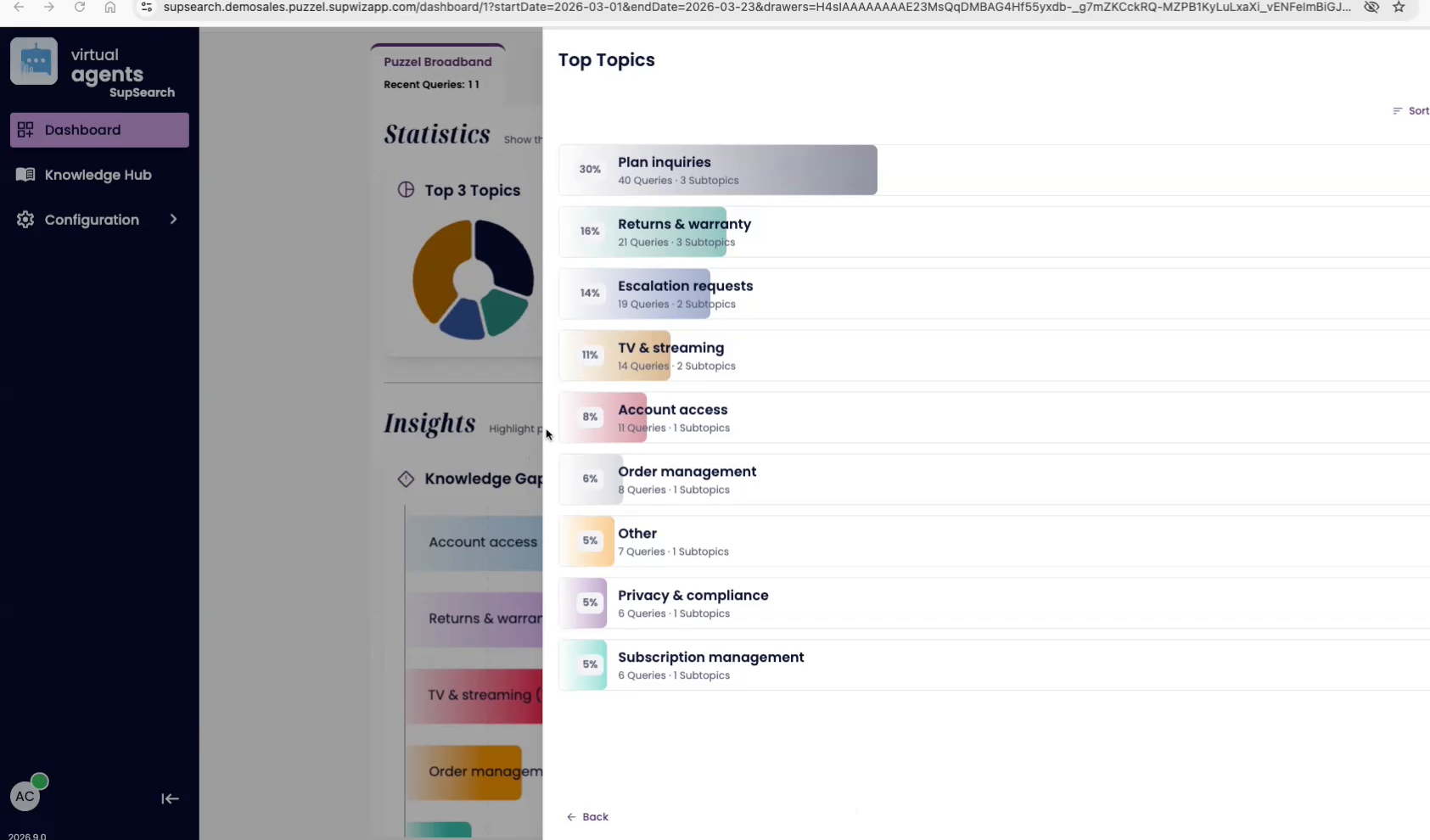
Figure 2. Top Topics can be expanded to show the full topic ranking and drill into the queries behind each topic.
What each statistic means
| Top Topics Shows the three most common topics in the selected period. They are ranked by share of total queries. Hover to see the raw query count, or select View all to inspect all top topics and subtopics. |
| Click-through rate The percentage of searches that lead to a click. This includes clicks on search results and clicks on source articles used to generate an answer in a virtual agent or copilot flow. |
| Traffic The total number of queries processed by the selected search engine during the chosen time period. |
| Top 5 rate The percentage of searches where one of the top five results has a quality signal, such as a click, AI feedback, or human labeling. This is a strong indicator of ranking quality. |
| Queries not in a gap The share of total demand that is already covered by existing knowledge. In the narrated example, 70 percent of queries are covered, which implies that about 30 percent still represent knowledge gaps. |
| Metric drill-downs Each stat can be clicked to open a drawer with more detail over time. These drawers also support data download for deeper analysis outside the dashboard. |
Bottom section: Insights
The Insights area turns dashboard data into action. It is split into two workstreams: Knowledge Gaps on the left and Search Optimization on the right.
Figure 3. Insights are organized into Knowledge Gaps and Search Optimization.
Knowledge Gaps
Knowledge Gaps surfaces the topics where the search engine is currently unable to answer users well enough. Gaps are grouped into key topics and ordered by estimated impact, so the highest-value issues rise to the top first.
Topics such as Account access, Returns and warranty, TV and streaming, Order management, and Subscription management are shown as grouped gaps.
Selecting a gap opens a focused detail view with an AI summary, estimated impact, and a subtopic breakdown.
Subtopics can be included or excluded to refine what belongs inside the gap before generating a recommendation.
View all opens the full list of gaps and lets teams sort by the prioritization criteria that matters most. By default, the list is sorted by estimated impact.
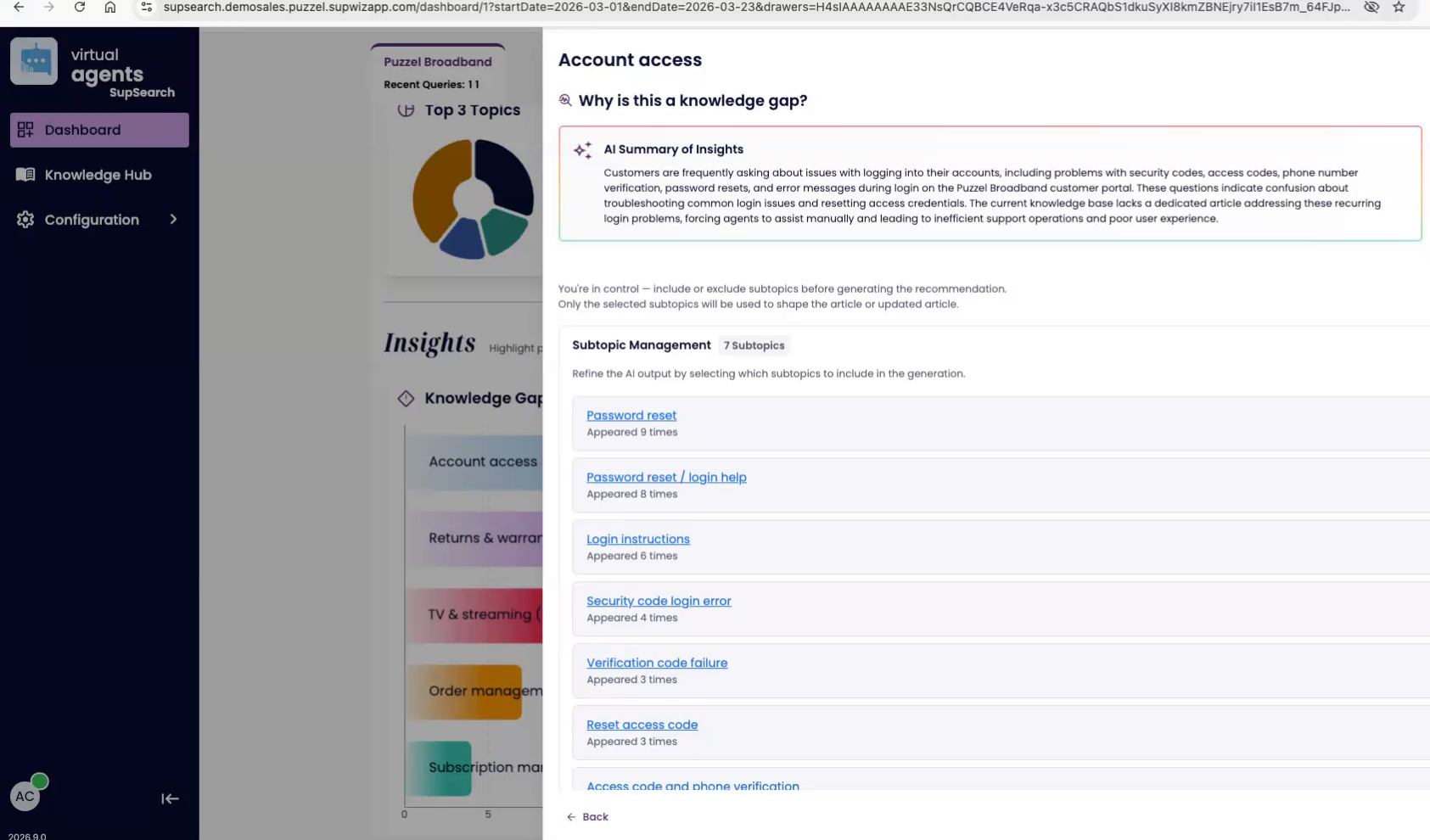
Figure 4. A knowledge gap detail view shows an AI summary, estimated impact, and the subtopics behind the gap.
How to close a gap
When Conversation Intelligence data is available, the dashboard can identify related conversations and use them to recommend content that would close the gap. That recommendation can take one of three forms:
Suggest an update to an existing article.
Suggest a brand-new article.
Suggest an outline when there is not enough data to draft the full article.
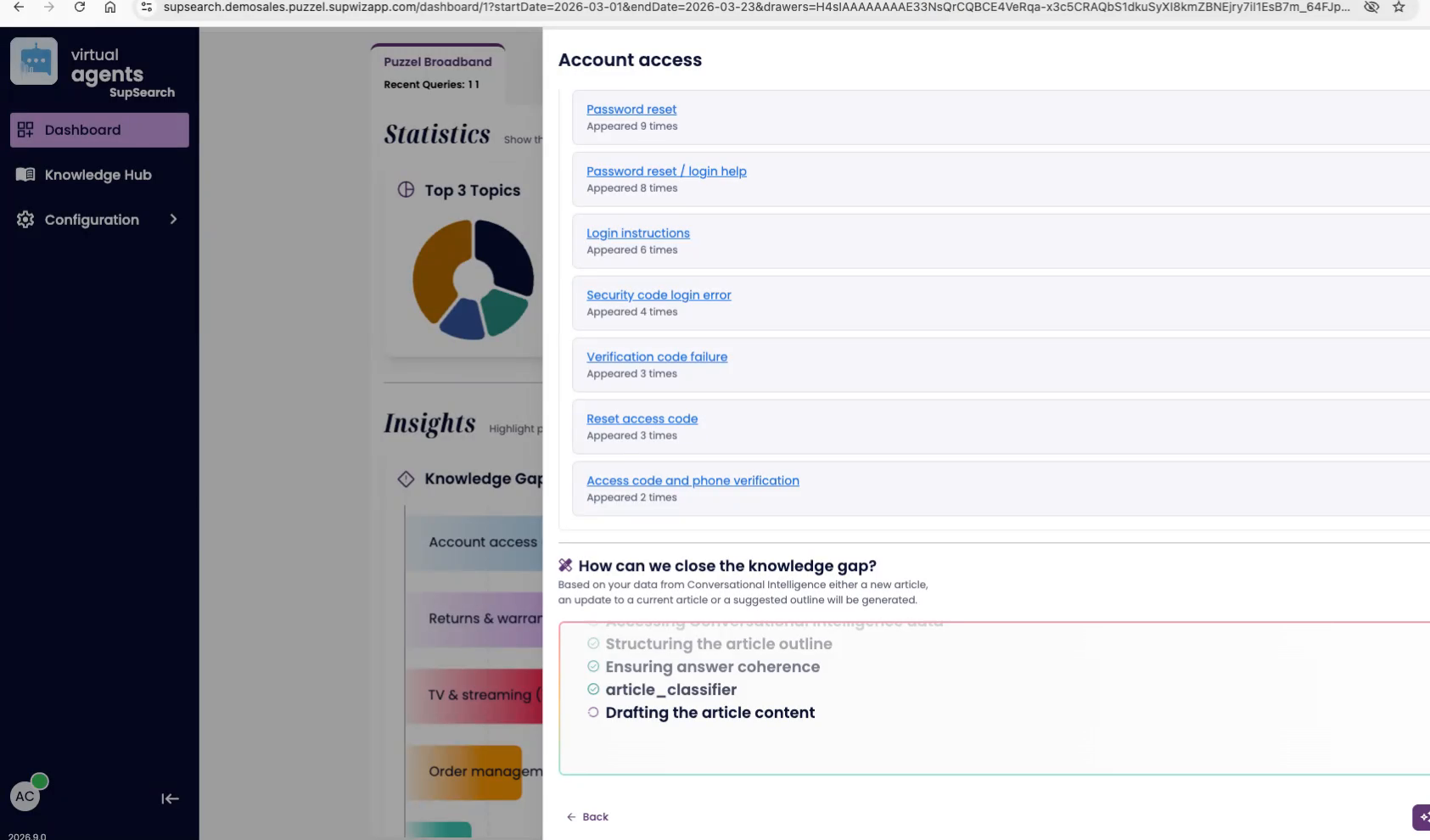
Figure 5. Gap recommendations can propose an update, a new article, or a lightweight outline to guide content creation.
Search Optimization
Search Optimization takes a subset of incoming queries and uses AI to suggest the most likely article match for each one. Each suggestion includes a confidence score so teams can review the strongest candidates first.
Open View all to see the individual queries, the proposed article, and the confidence score.
Approving a suggestion creates labeled data. That trains the engine to be more certain the next time a similar query appears.
Rejecting a suggestion removes an incorrect mapping and keeps the search engine from learning the wrong association.
Results are ordered by confidence score, which makes it easy to process the clearest wins first.
Figure 6. Search Optimization helps teams approve or reject AI-generated query-to-article matches.
Recommended workflow
| 1. Start with the statistics row | Confirm the selected search engine and time period, then scan Traffic, click-through rate, Top 5 rate, and coverage outside the gap. | |
| 2. Inspect the biggest topics | Use Top Topics to understand what users are asking for most often and where the demand is concentrated. | |
| 3. Prioritize gaps by impact | Open the highest-impact knowledge gaps first, refine their subtopics, and generate the content recommendation. | |
| 4. Strengthen relevance | Work through Search Optimization suggestions from highest confidence downward so the engine gains reliable labeled data over time. | |
| 5. Measure again | Return to the same dashboard after content updates or labeling work to verify whether coverage and engagement improve. | |
Best practice Use the dashboard as a loop: measure performance, identify gaps, create or improve content, label high-confidence matches, and then re-check the same metrics over time. | ||