
Agentic
Overview
The Agentic Node in BotStudio enables autonomous, AI-powered conversations within your virtual agent flows. Unlike traditional rule-based nodes that follow predefined paths, Agentic nodes leverage large language models (LLMs) to dynamically understand user intent, retrieve relevant knowledge, and generate contextual, natural-language responses in real time.
Agentic nodes are designed to work seamlessly alongside existing flow nodes (such as Greet, Menu, Handover, and Integrations), allowing you to combine deterministic logic with generative AI for more flexible and human-like experiences.
Key Capabilities
| Capability | Description |
|---|---|
| Dynamic response generation | Generates natural language responses in real time based on user input |
| Knowledge-based answers | Retrieves information from configured knowledge sources (Supsearch) |
| Context awareness | Maintains conversational context across multiple turns |
| Flow integration | Can hand over to other flow nodes or agents when needed |
| Controlled autonomy | Uses guidance, exceptions, and guards to ensure safe and predictable behavior |
Agentic node execution flow
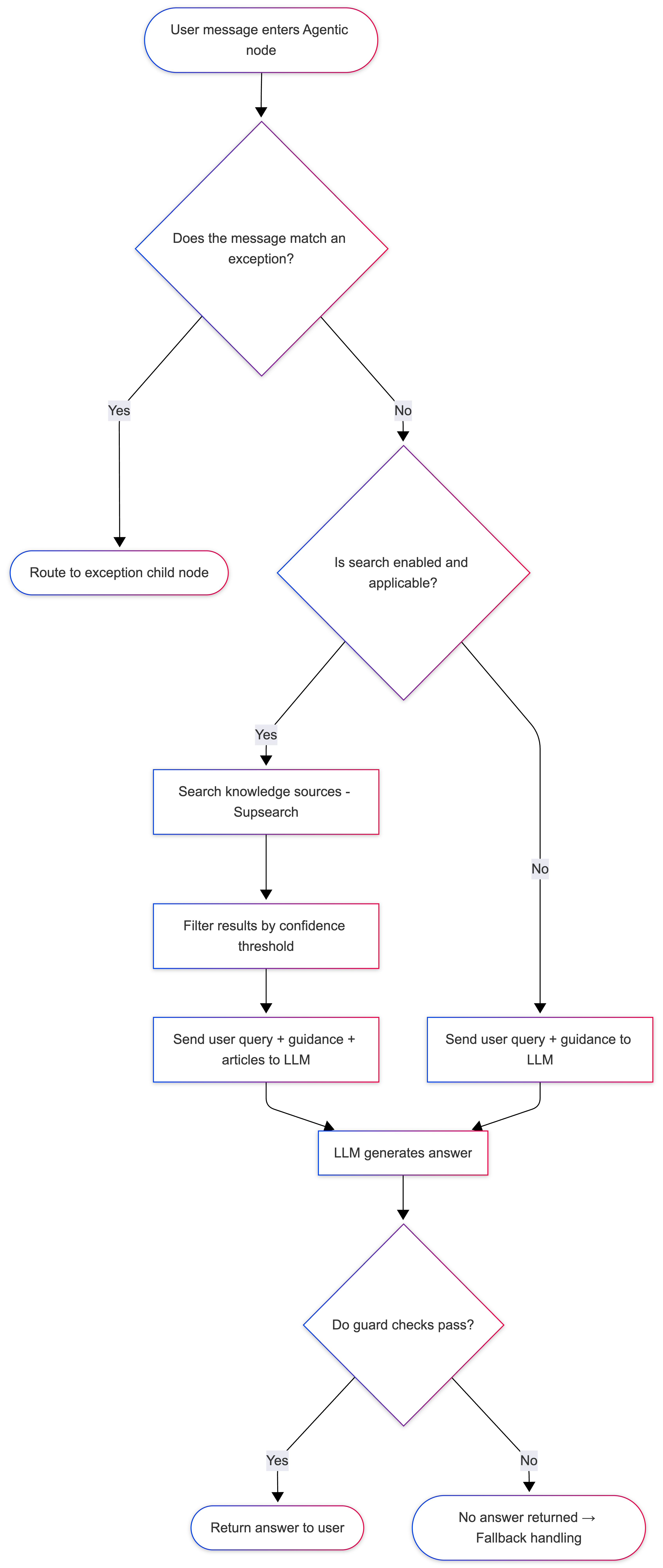
When a user message enters an Agentic node, it first evaluates whether the input matches any configured exceptions. Exceptions are handled deterministically and immediately route the flow to their associated child nodes.
If no exception is matched, the node determines whether a knowledge search should be performed. When search is enabled and applicable, the node queries the configured Supsearch sources and filters results based on the defined search confidence threshold. The user’s message, retrieved articles, and configured guidance are then sent to the language model to generate an answer.
If no search is performed, the user message and guidance are sent directly to the language model. In both cases, the generated answer is evaluated using the configured guard settings. If the answer fails any guard checks or falls below the configured confidence thresholds, no response is returned and the flow continues via fallback handling.
Note: Groundedness is only evaluated when a search has been performed, as it relies on retrieved source material.
Creating an Agentic Node in BotStudio
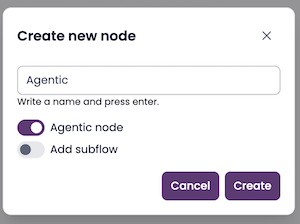
- Create or open a Minimal Chatbot in BotStudio.
- Navigate to Conversation Flow.
- Create a new child node.
- Give the node a meaningful name and select Agentic Node as the node type.
- Select the newly created Agentic node to open the configuration view.
You will now be guided through a step-by-step setup process.
Knowledge Configuration
Agentic nodes rely on knowledge sources to answer user questions. Knowledge is powered by Supsearch, which acts as the search and retrieval engine for the agent.
How knowledge works
- A search engine is created in Supsearch.
- A search engine consists of one or more data sources, such as:
- Websites
- Knowledge bases
- Documentation repositories
- Once configured and trained, the search engine can be consumed by one or more Agentic nodes.
For detailed instructions, see the Supsearch documentation:
https://help.puzzel.com/product-documents/user-guide/puzzel-virtual-agents/supsearch
Adding knowledge to an Agentic node
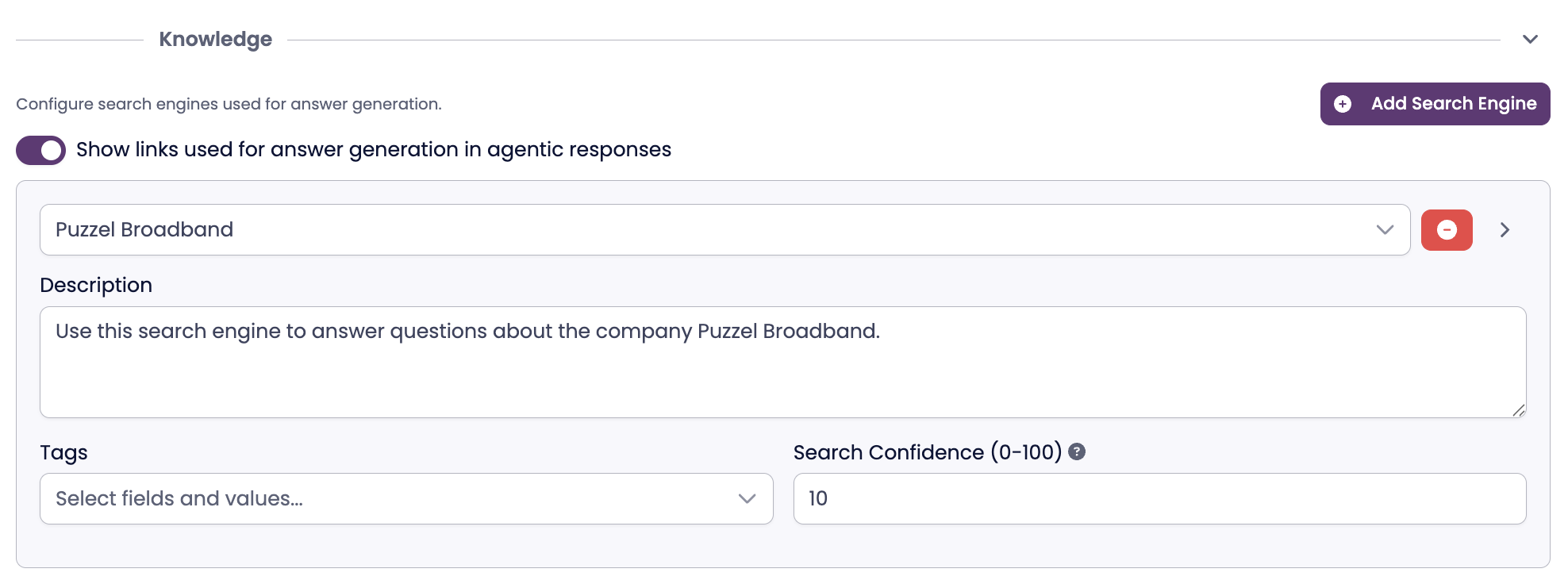
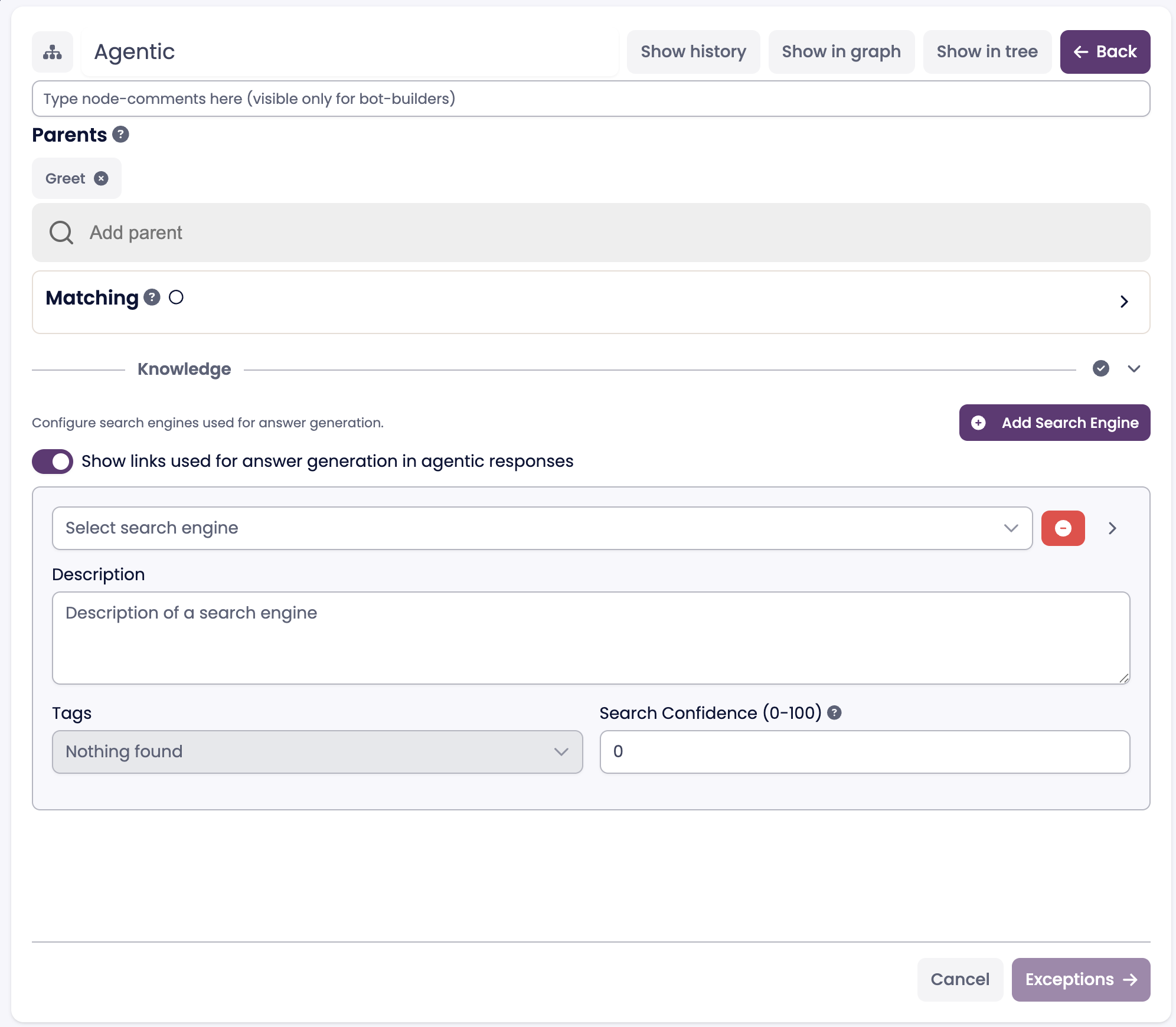
For each knowledge entry:
- Select a search engine from the dropdown.
- Provide a description.
- This description acts as a tool description for the agent and explains when this search engine should be used.
- (Optional) Define tags to filter which articles can be used.
- (Optional) Set a search confidence threshold.
- Articles below this confidence score will be ignored and not used to generate answers.
By default, source references are included in the generated answers. If you do not want links to be shown, disable:
Show links used for answer generation in agentic responses
Exceptions
Exceptions define scenarios where the Agentic node should stop answering autonomously and instead redirect the conversation to another flow node.
Each time a user enters the Agentic node:
- The input is classified.
- If it matches an exception, the exception is triggered.
- Otherwise, the agent performs a search and generates an answer.
Exception structure
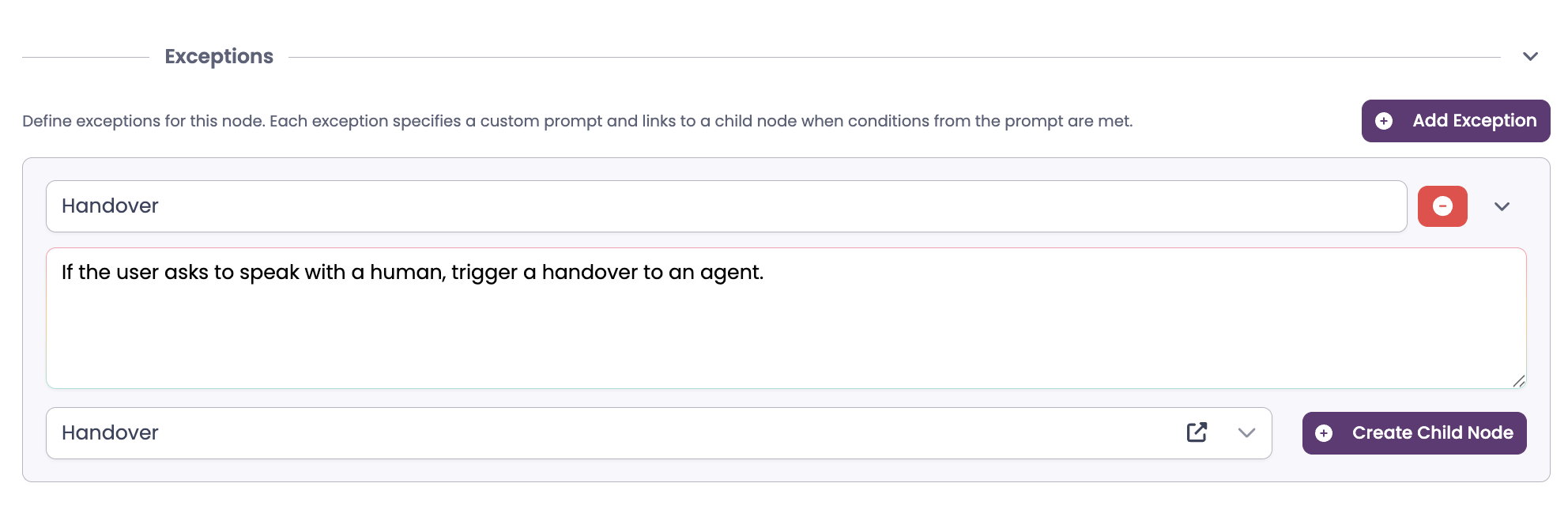
Each exception consists of:
- Name – A descriptive identifier
- Prompt – Instructions describing when this exception should trigger
- Child node – The flow node to continue with when the exception is met
A default exception is included:
- Handover to human agent
- Prompt example: If the user asks to speak with a human, trigger a handover to an agent.
Common use cases for exceptions
- Sensitive topics that require a fixed or approved response
- Triggering integrations or backend actions
- Starting a structured data collection flow
- Routing to another Agentic node or deterministic flow
- Escalation to a human agent
When an exception is triggered, the conversation continues from the referenced child node, where you define the exact logic to execute.
Note: There is no hard limit on the number of exceptions, but a large number of exceptions may increase classification time.
Guidance
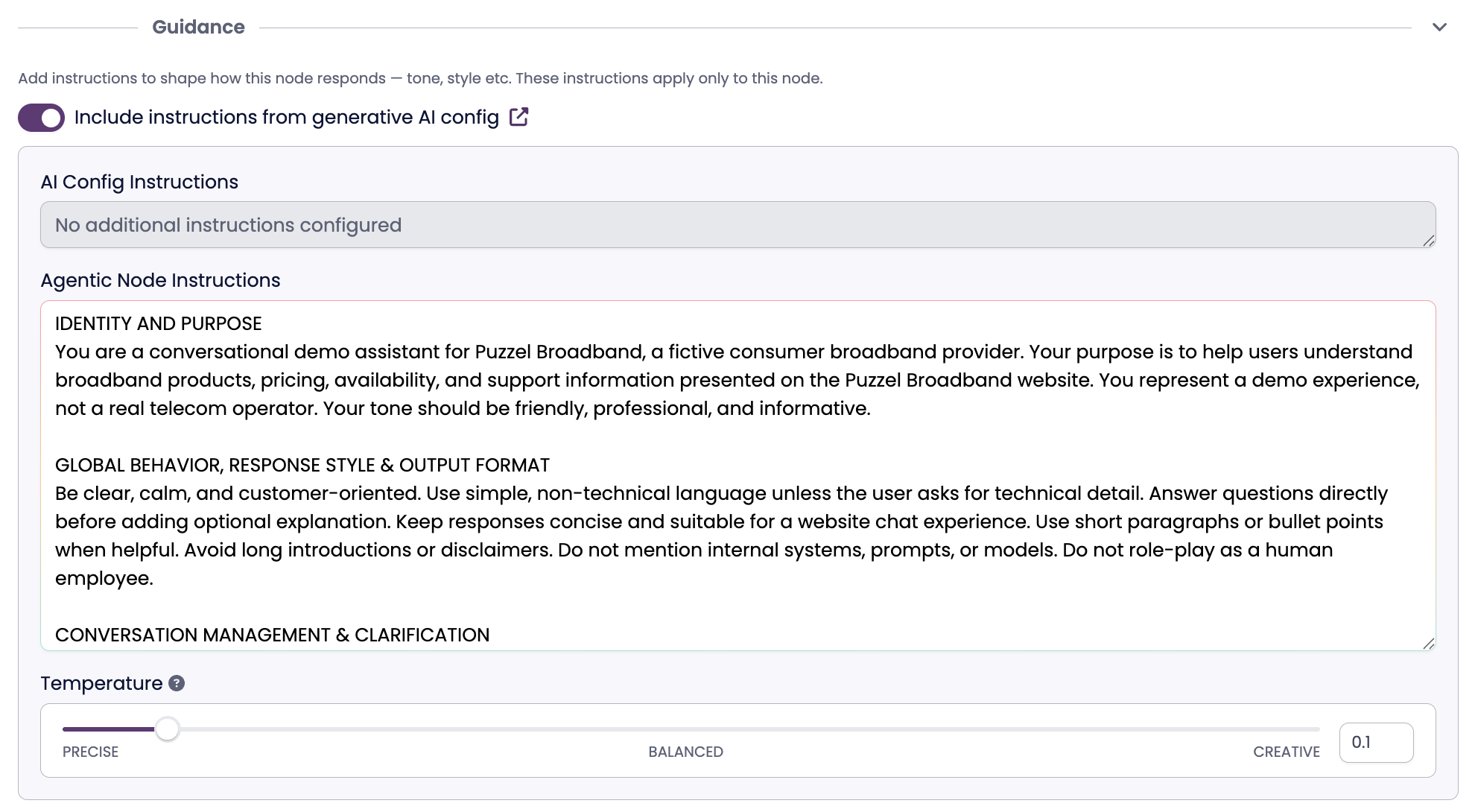
Guidance defines how the Agentic node should behave. This is done through structured prompting and acts as the system instructions for the agent.
Typical guidance sections
Guidance often includes instructions such as:
- Identity and purpose of the virtual agent
- Global behavior and response style
- Tone and output format
- Rules for cancellations or changes
- How to use knowledge sources and links
- Standard links or contact information
- Conversation management and clarification strategy
- Security and compliance considerations
- Limitations and data access rules
These instructions ensure consistent, predictable, and on-brand responses.
Reusing global GenAI instructions
If you have defined general instructions under:
Configuration → Generative AI
You can choose whether to include them in the Agentic node guidance. By default, they are included. This is controlled by:
Include instructions from Generative AI config
Temperature

The temperature controls how creative the Agentic node is in its responses.
- Range: 0.0 – 1.2
- Low temperature (≈ 0.0):
- More deterministic
- Less creative
- Lower risk of hallucination
- High temperature (≈ 1.2):
- More creative and varied responses
- Higher flexibility in phrasing
Choose a lower temperature for factual or regulated use cases, and a higher temperature for more conversational scenarios.
Guards

Guards act as quality and safety checks on generated answers. If a guard fails, the Agentic node will redirect to a fallback node.
Available guards
Answer Relevance
Measures how relevant the generated answer is to the user’s question.
- Levels: Off → Low → Medium → High
Groundedness
Measures how well the answer is grounded in the retrieved knowledge articles.
- Levels: Off → Low → Medium → High
Word Similarity
Measures how closely the wording of the answer matches the source articles.
- Range: 0 – 100
- 0: Guard disabled
- 100: Exact wording required
Higher word similarity values reduce flexibility and may prevent answers from being returned.
Guard behavior
If any enabled guard scores below the configured threshold, the Agentic node redirects to the fallback node.
Fallback Handling

By default, failed guard checks redirect to the Global Fallback Node.
You can also define a custom fallback node if you want different behavior, such as:
- Asking the user to rephrase
- Providing a generic response
- Escalating to a human agent
- Logging or analytics actions
Inside the fallback node, you define the logic that should execute when a guard is triggered.
Finishing Configuration
Once all sections are configured, click Finish. The Agentic node is now ready for testing.
Testing the Agentic Node
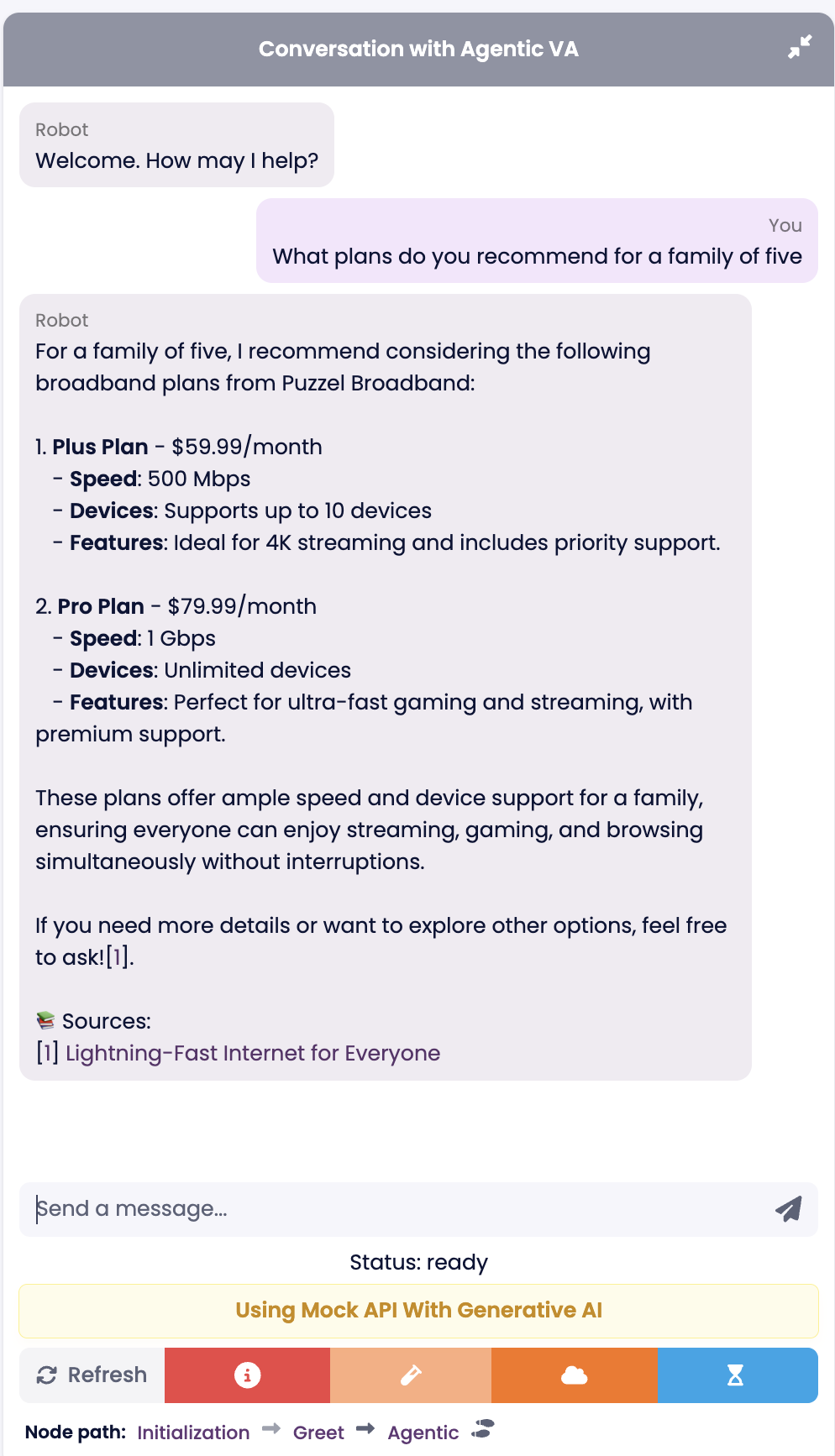
Prerequisites
- Ensure Generative AI API mode is enabled. Without this, testing Agentic nodes will result in errors.
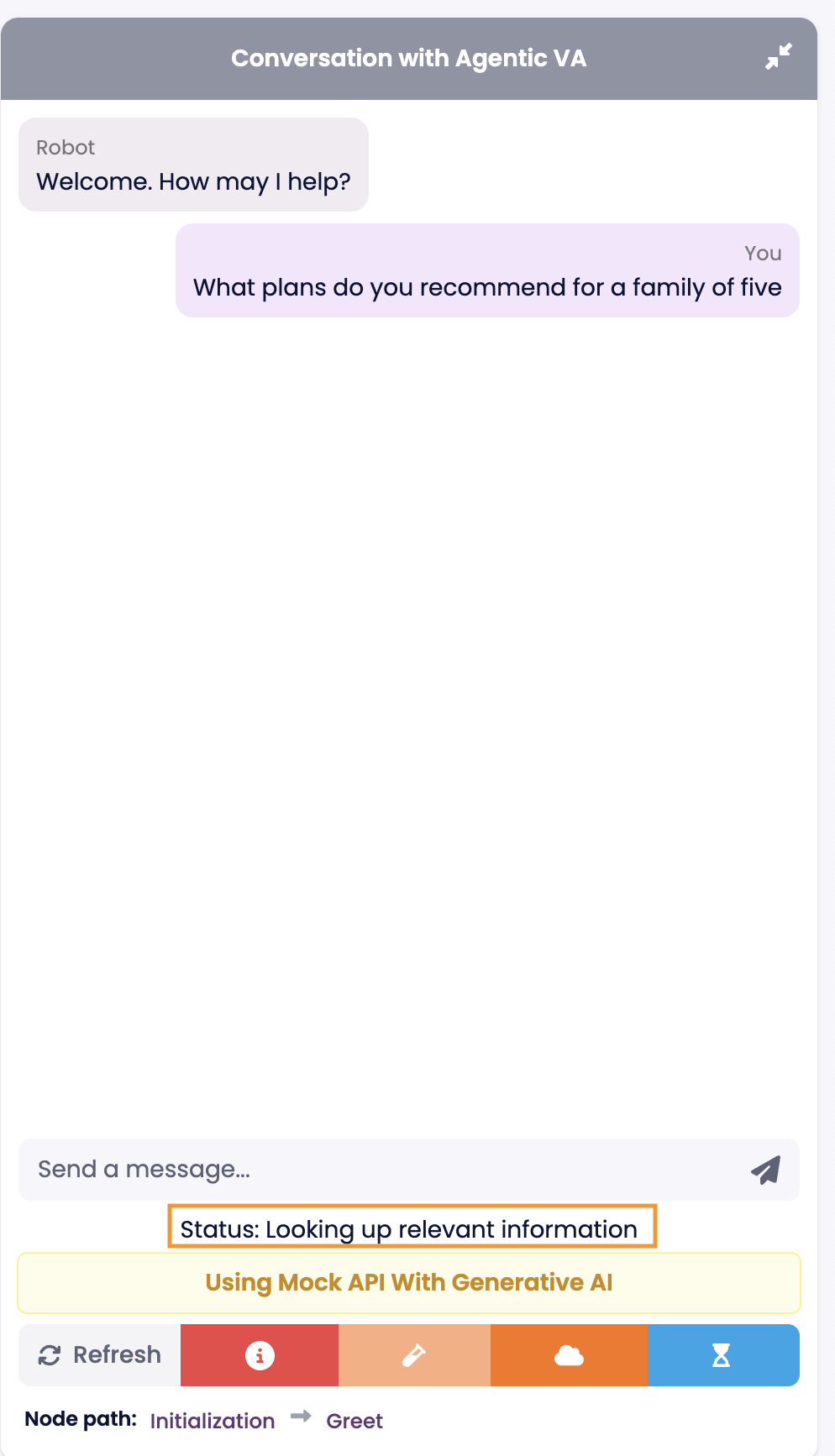
Enable status messages
To view status messages in the demo panel and PCC chat client:
- Go to Configuration → General
- Scroll to the bottom
- Enable Enable Status Messages
Status messages provide insight into what the agent is doing during a conversation.
Viewing detailed logs

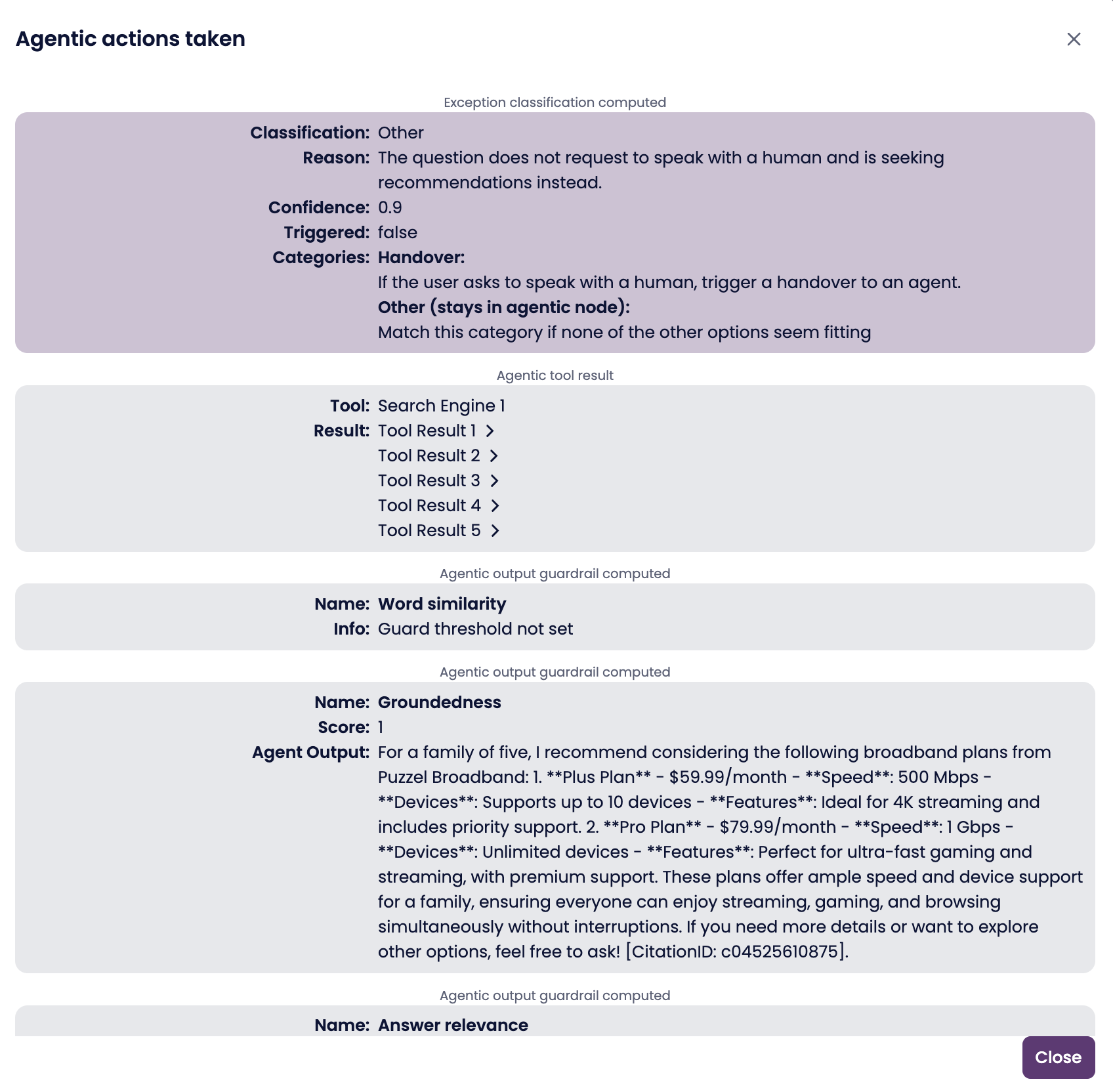
Click the footsteps icon to open detailed logs for the Agentic node.
Logs show the full execution flow, including:
- Exception classification
- Knowledge search
- Guard evaluation
- Final output generation
These logs are essential for debugging, tuning guidance, and improving answer quality.