
Puzzel SMS Campaign Userguide
Introduction
Puzzel SMS Campaign is a web-based product for the mass sending of text (SMS) messages and is typically used to send SMS messages to thousands or even hundreds of thousands of recipients.
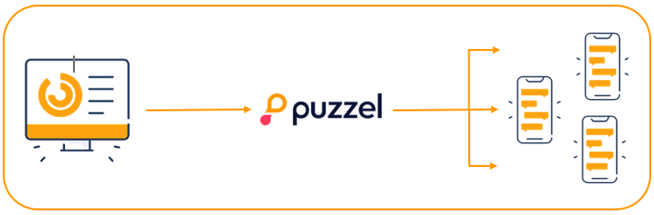
There are two ways of defining messages in Puzzel SMS Campaign. They are either entered directly online or uploaded from a file. The messages that are sent out can be identical for each recipient or they can be customised for each recipient, e.g. by merging the recipients' names into the messages.
The mobile numbers of the message recipients will always be uploaded from a file.
The way in which messages are adapted, the format of the files and the procedure for uploading files is described in this document. Other functions and options available in Puzzel SMS Campaign are also described here.
Help functions are generally available on the Puzzel SMS Campaign pages.
These are indicated by this icon: 
Create campaign
To initiate a campaign, press the "New Campaign" function in the menu.
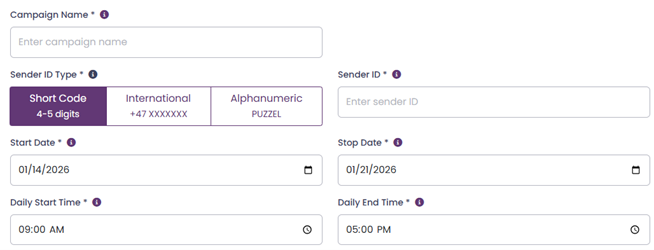
The various fields must be completed as follows:
Field name | Description |
Campaign Name | A name for the campaign, which will identify the campaign in status screens later. Free text. |
Sender ID Type | Choose type of sender ID you wish to use for the campaign. Three options:
A default type will appear. This is set for each service and can be ordered. |
Sender ID | Sender ID type regulations differ by country, so availability of the three sender options is not guaranteed. Additionally, alphanumeric sender IDs are subject to restrictions, as specific corporate names and public service titles may be protected. |
Start date | Start date and time for the campaign, specifies the time of dispatch of the first message |
End date | End date and time for the campaign, indicates the last possible time by which messages must have reached the recipients in this campaign. Messages sent out on the internet which do not reach the recipient by this time will be deleted. |
Daily Start Time | Time of day when messages can be sent |
Daily End Time | Time of day when message sending stops |
File Upload Type | Choos between Standard (CSV) and Power SMS |
File Selector | Upload your file of choice |
Message Content | Type in your message content (Only usable for Standard (CSV) format) |
Entering recipients and message content
When all the fields have been completed, the text and recipients must be entered.
You have the option to enter text manually or upload it from a file.
Recipients must be uploaded from a file.
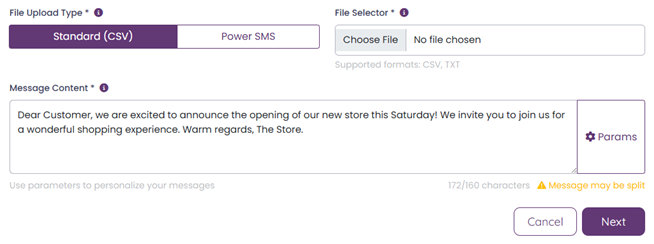
File Upload Type: Use Standard (CSV) as default, which support both CSV and TXT.
(See the separate description for information on how to use the Power SMS format.)
Message content: Enter the required text here.
Characters: Shows the number of characters in your text. 160 characters constitutes 1 message.
Param: This function allows you to insert unique values for each recipient, for example, if your company wants to notify customers of their individual bonus point balances. Create a file in which you have recipients downwards. You then use a semi-colon (;) after each number and enter the parameter value (e.g. Name, bonus) as follows:
+447594106952;James Bradley;64
No spaces between recipient number, semi-colon (;) and parameter value.
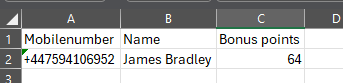
Choose File: Here, you upload your recipients by the “Choose File” option.
The file you select must be a CSV file. Recipients must be listed with a single number per line, or with one number and parameter per line. File formats are described in the following sections.

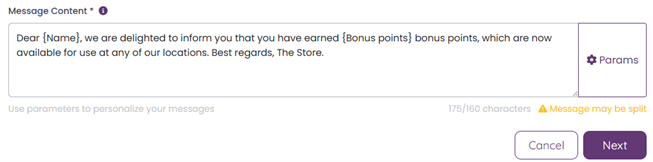
Place the cursor where you would like the parameter to appear, click “Params”
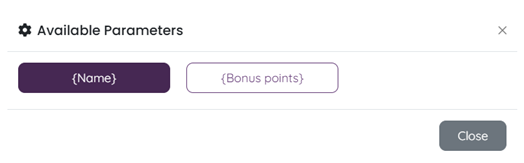
Pick your parameter, then close, and do the same for the rest of the parameters. Then click “Next”
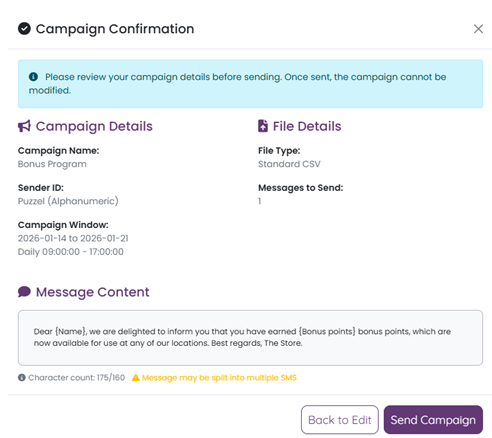
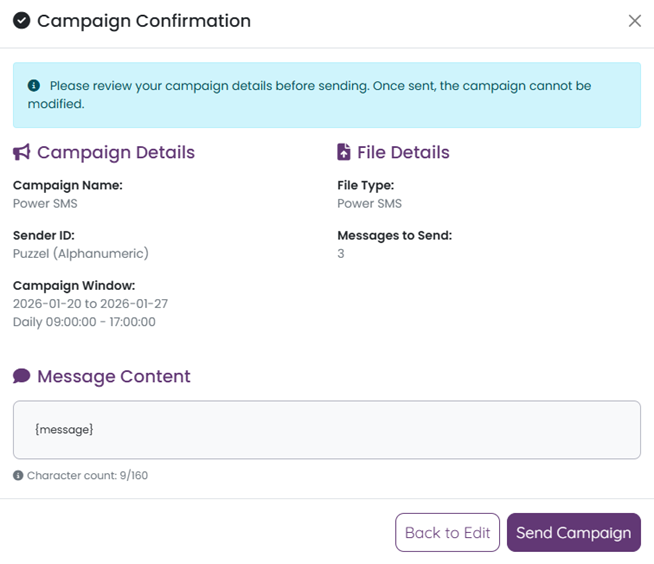
The Campaign confirmation will appear, allowing you to review the details before clicking “Send Campaign”
Once the campaign is sent, you will be redirected to the “Campaign Dashboard” where you can monitor the current campaign or review previous campaigns.
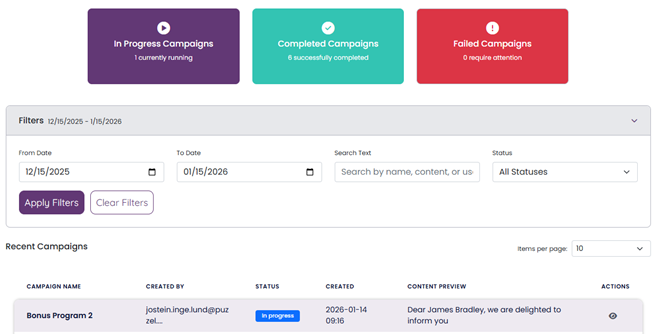
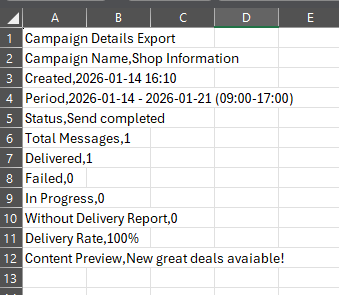
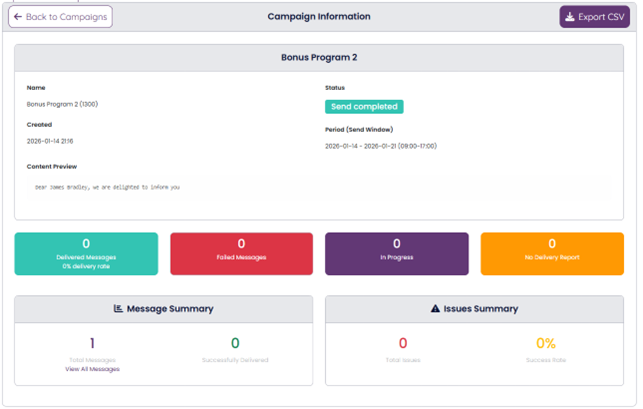
By clicking this symbol;  under actions, you open the Campaign Information. This section provides all relevant details regarding your sent campaign, with the option to export the data to a CSV file.
Mobile number formats
Mobile numbers must contain the country code (Prefix).
Examples of numbers which will be interpreted as identical:
+4471915573
+44 719 15 573
+44 71 91 55 73
All these numbers will be interpreted as identical
Format of files with a single number per line
Format of files with a single number per line
<number>
<number>
<number>
:
:
:
<number>
Example:
+47 998 88 765
+47 987 65 234
+47 945 99 234
Format of files with numbers and parameters
The first row is always the header, and the first field shall always be the mobile phone number.
Multiple parameters can be used
Format of files with numbers and names:
Header row <number>;<parameter1;<parameter2>
Receipient row <number>;<parameter>;<parameter2>
:
:
:
<number>;<parameter>;<parameter2>
Example:
Mobile phone number;name;bonus points
+47 986 56 565;Peter;4324
+47 987 23 432;Jane; 8726
+47 999 88 777;Stephen; 6525
Power SMS - One message per recipient or recipient group.
It is possible to send a specific message to each recipient or group of recipients. These messages cannot contain a line break. This is done by defining recipients and the associated texts in a file, with the following format:
<number> <text 1>
<number> <text 2>
<number>
<number>
<number> <text 3>
:
:
:
<number> <text>
There is therefore a space between the mobile numbers and the texts. The intention here is that recipients who are not linked to a message will "inherit" the message from the previous line.
Example:
+4790867825 I sincerely appreciate your valuable input during today's session.
+4799887766 Much appreciated for your help in today's meeting.
+4799112231 Thanks for joining us today and for all your great ideas!
+4790928298
+4790484029
+4479118833 Hope we see you next week.
In the example above, the recipients +4790928298 and +4790484029
will receive the same message +4799112231, i.e.: Thanks for joining us today and for all your great ideas!
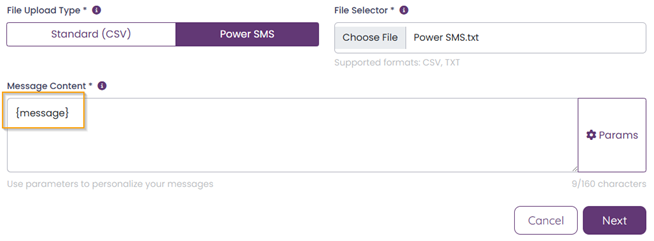
In this instance, the message content will only show {message}, as the actual content is in the file and may vary.
Campaign Dashboard
In Campaign Dashboard you can monitor your current campaign or review previous campaigns.
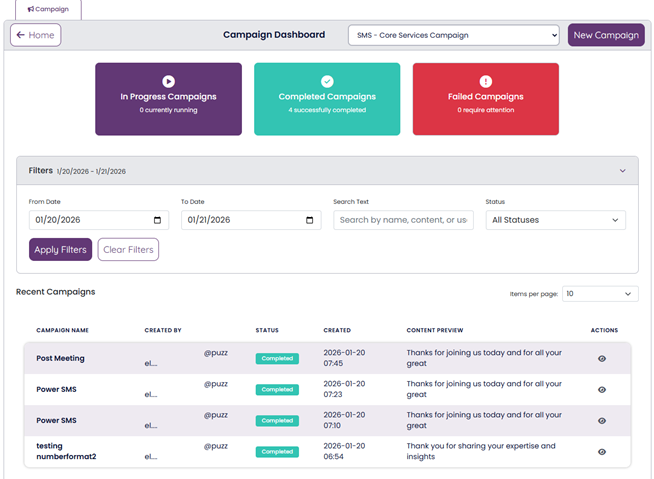
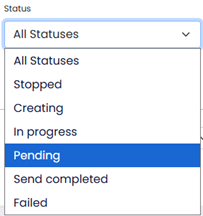
This view displays all campaigns scheduled, active, or completed within the chosen timeframe.You can apply filters to specify your search according to your preferences.
 Click on
  to display more information.
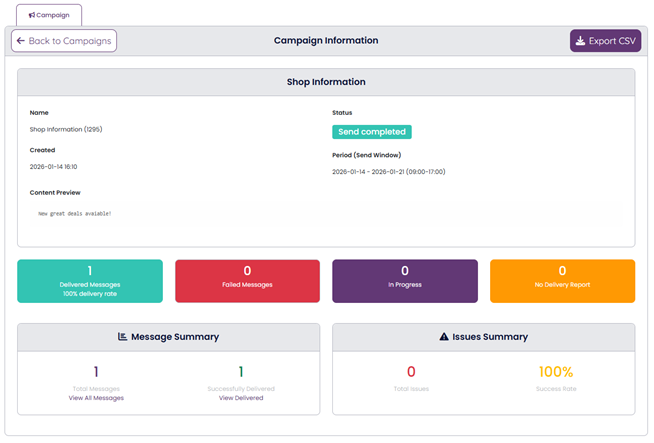
Your campaign can be exported to CSV for custom reporting and workflows.