
Puzzel SMS Messenger Userguide
Puzzel SMS Messenger Management
Puzzel SMS Messenger is a cloud hosted SMS tool for individual and broadcast messaging, fully managed and operated through a web portal.
To ensure Puzzel SMS Messenger functions efficiently, the Initial setup by an admin is recommended before general use can begin.
For description of how to send messages, see the section; "Send Messages”.
Login
 Login for the management of Puzzel SMS Messenger is done via this URL:
https://app.puzzel.com/messaging/
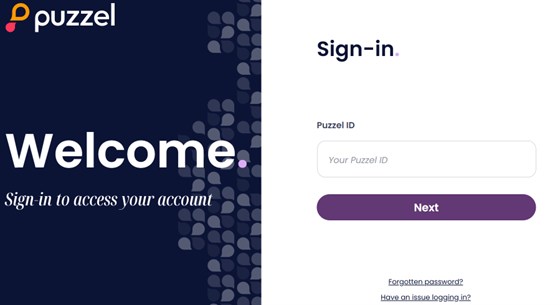
Log in with your Puzzel ID
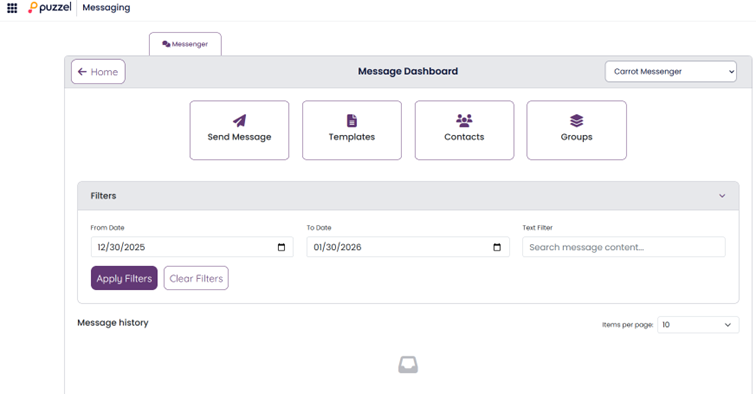
After you have logged in, you will see the “Message Dashboard” where you can do initial setup of;
- Send Message
- Templates
- Contacts
Groups
Contacts
Under the contacts menu, you can add, edit, and delete common contacts. The contacts are predefined potential recipients of messages. These can also be included in different groups. Click “New Contact” or “Import”.
Add manually
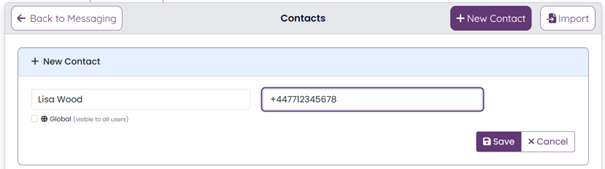
Add name and mobile number (Country prefix e.g. +44 , must be included in the number entry).
Users with an Administrator role can make a contact accessible for all Messenger users within your organization, simply check the Global option. Users without the Administrator role can make new contacts, but the contact will be marked as personal.
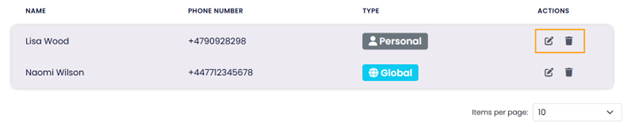
Under “Actions” you can edit or delete your contacts.
Add from file
 For import of contacts Upload a CSV or TXT file with format: Name,PhoneNumber (one contact per line). Choose your file, and then click
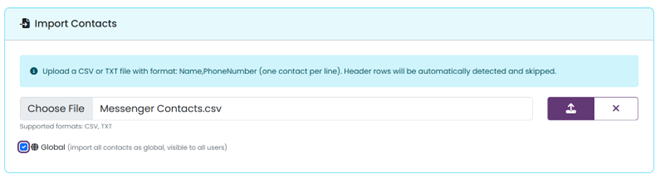
If you have an administrator role, use the 'Edit' function to toggle a contact's status between global and personal.

Create and managing Groups
For creating and managing Groups, click the ‘Groups’ menu button
Add a new group, type in the group name, Set the group to either global or personal, if you have an administrator role.
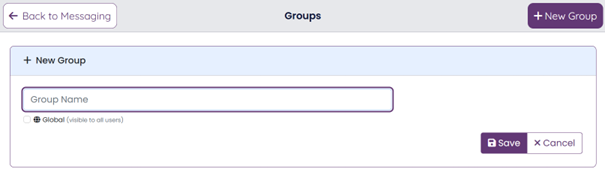
Choose the contacts you wish to apply to this specific group.

Transfer contacts from the 'Available' list to the 'Group' list. To select several entries simultaneously, hold the Shift key while clicking. Move the contacts by clicking the arrow button.
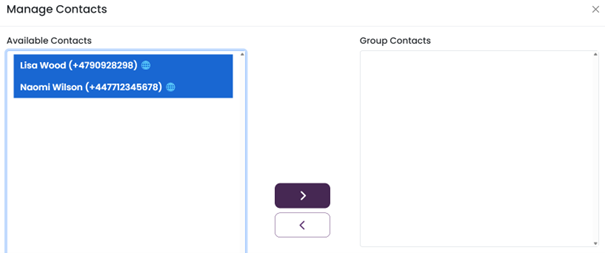
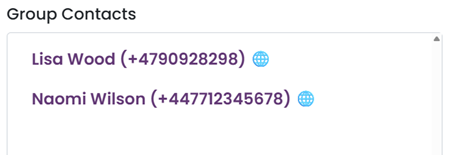

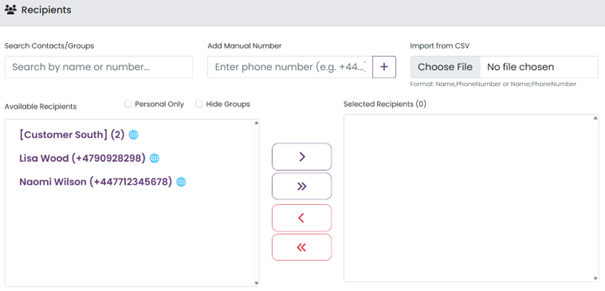
When sending SMS, you can now select entire contact groups, individual entries, or a combination of both. Additionally, the platform supports both bulk one-time imports and manual recipient entry for maximum flexibility.
Templates
Create templates by entering the Templates menu and add a new template.
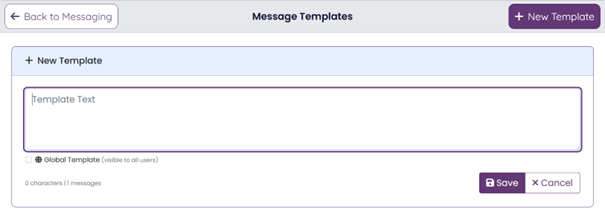
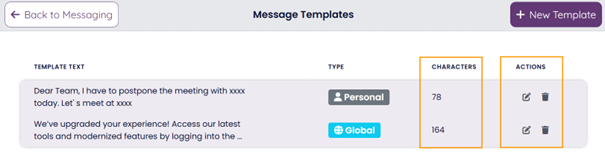
Templates can also be created as global if you have an administrator role or personal for all users.
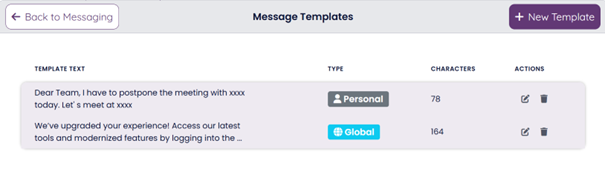
Review character lengths in the template overview, where you can also edit or discard entries.
Sending Messages
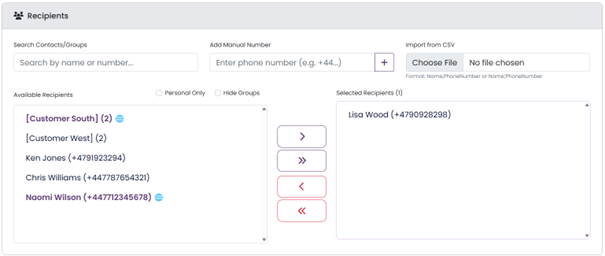
Choose your recipients from ‘Available Recipient’ and move to ‘Selected Recipient’ or add in manually or import from CSV.
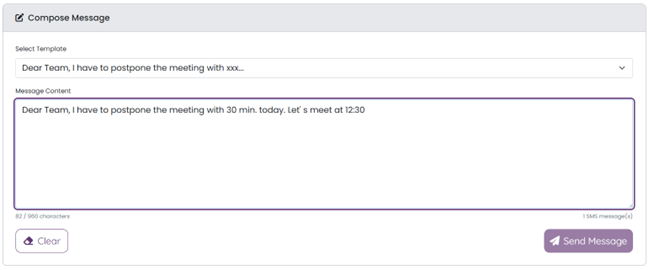
Compose your message, by typing in manually, or choosing from premade templates. You may edit your template in the Message Content window before sending.
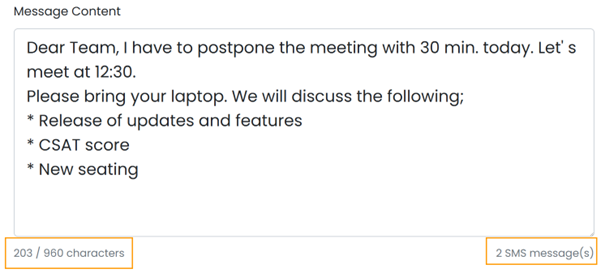
Track your character count and total message volume using the real time counter situated below the content area.
When message is sent, you will be redirected to *Message Dashboard’ where you can view information about your sent messages.
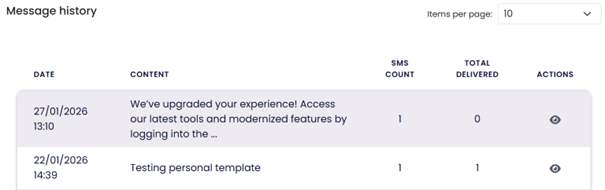
By clicking this symbol;  under actions, you open the Message Details.
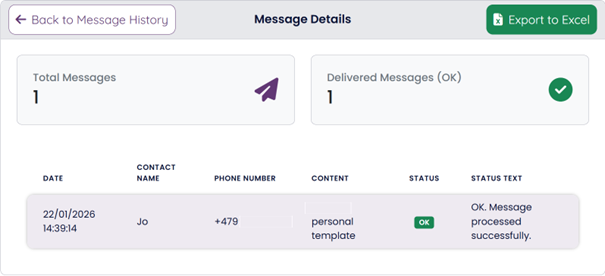
This section provides all relevant details regarding your sent messages, with the option of exporting the data to Excel.