
Setting Up a Public FAQ
The Puzzel Public FAQ allows you to create a dedicated, searchable help center for your customers. You can customize the layout, branding, and content visibility to match your company’s needs. All of this is done in the Puzzel Contact Centre Chat administration interface.
- In order to publish any content you need to have a Puzzel Knowledge Base with articles and a public configuration. To create and maintain the knowledge base, see documentation:
https://help.puzzel.com/product-documents/user-guide/puzzel-contact-centre/puzzel-administration-portal/knowledge - To be able to continue following the instruction first see basic documentation for Puzzel Contact Centre Chat:
https://help.puzzel.com/product-documents/user-guide/puzzel-contact-centre/puzzel-administration-portal/services/puzzel-contact-centre-chat-new-documentation
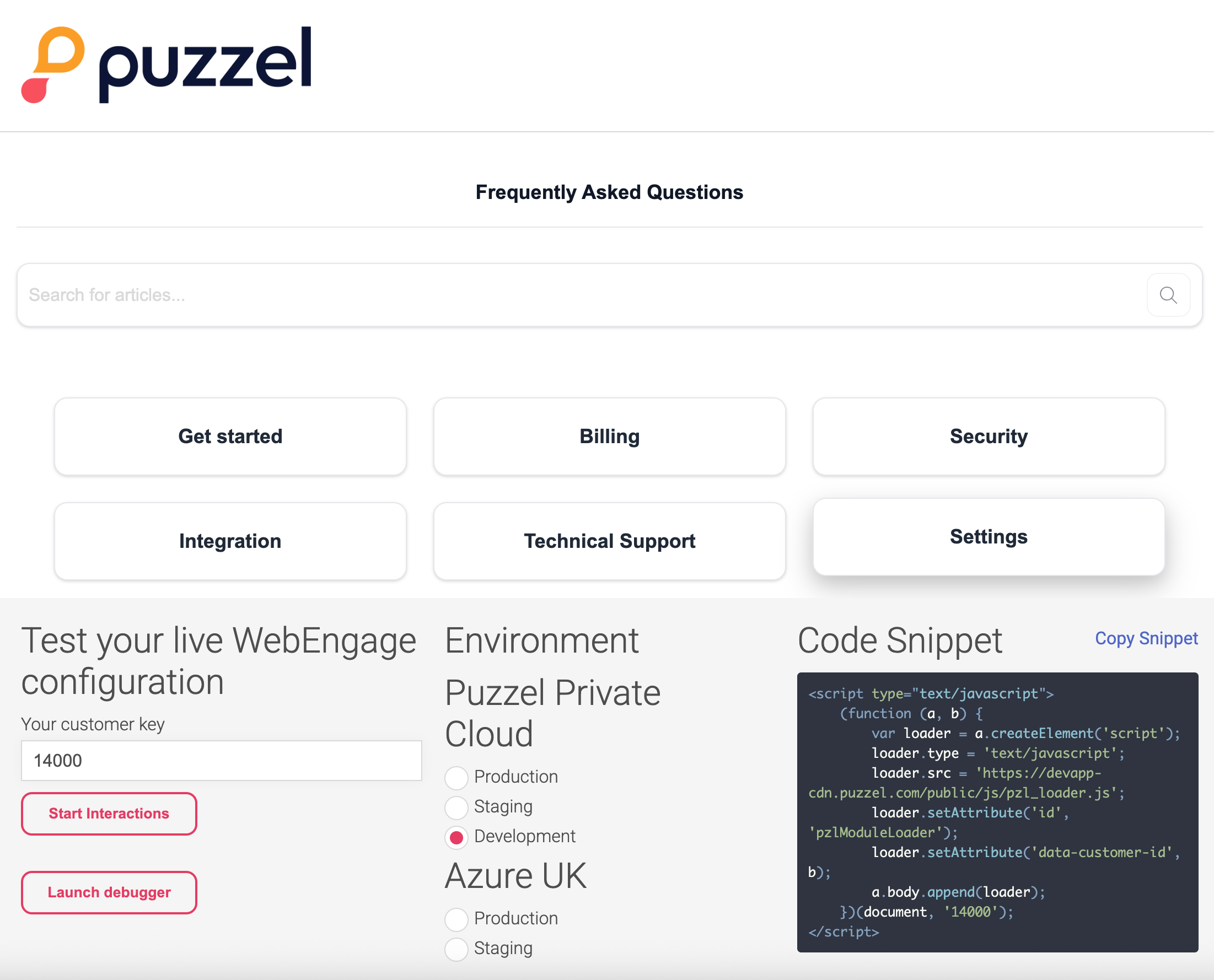
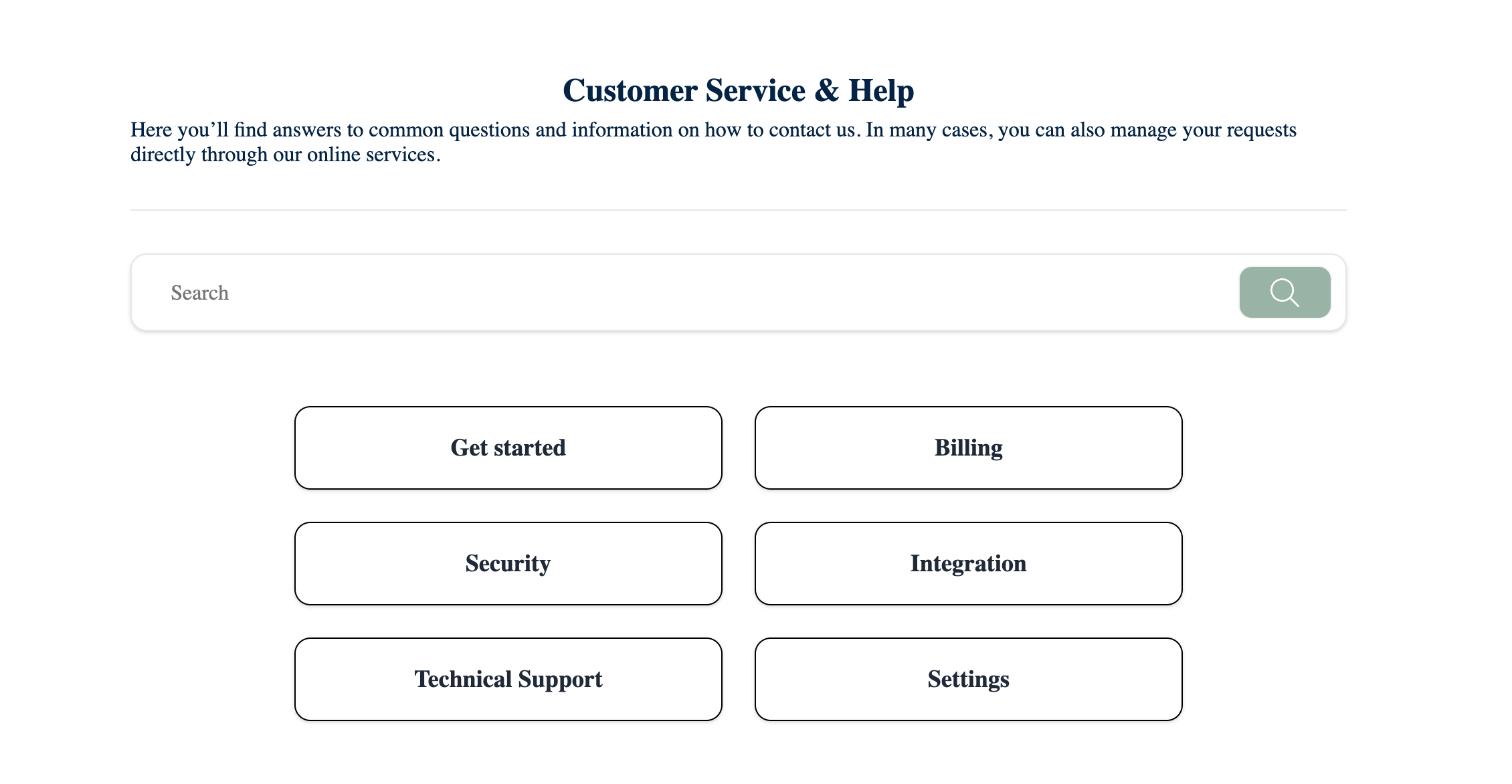
The picture below is an example of how the Public FAQ can look on a webpage.
1. Create a new or go to an existing configuration.
2. Adding the FAQ Interaction
To begin, you need to add the FAQ site to your configuration:
- Navigate to your configuration and click Add Interaction.
- In the "Add Interaction" modal, scroll to the FAQ Site section.
- Select the FAQ Site tile (labeled "Create a dedicated FAQ site").
- Click the Add button in the bottom right corner.
3. Designing Your FAQ Site
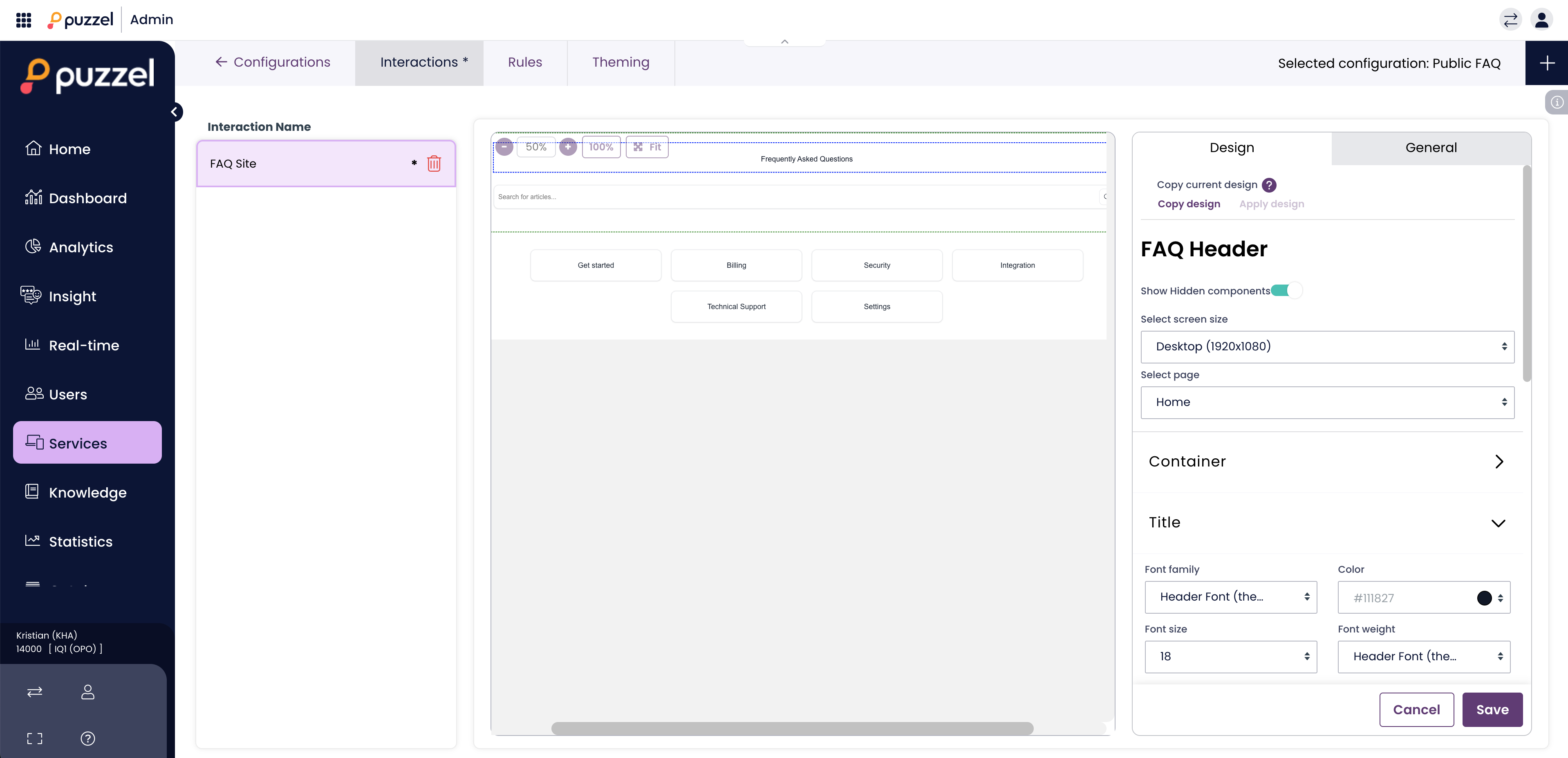
Once added, you will enter the editor interface. The design process is interactive: click what you want to change.
- Customizing Elements: Click directly on any element in the Live Preview (left pane)—such as the search bar, category buttons, or headers—to open its specific properties.
- Visibility & Text: Use the Design tab on the right to:
- Change display texts and labels.
- Toggle the Visible switch for specific components.
- Branding: Any global settings defined in Theming (like corporate fonts or color palettes) can be applied here to ensure brand consistency.
4. Managing Different Pages
A Public FAQ consists of several views. Use the Select page dropdown in the right-hand panel to switch between and design:
- Home: The main landing page with categories.
- Category: The list of articles within a specific section.
- Article: The actual article page where customers read the solution.
- Search Result: The layout users see after using the search bar.
Pro Tip: All pages follow the same logic—click an element in the preview and edit its look and feel in the Design tab.
5. Saving Your Work
After making your adjustments, ensure you click Save in the bottom right corner of the editor then publish your configuration to make it available online.
Include the Public FAQ on a website
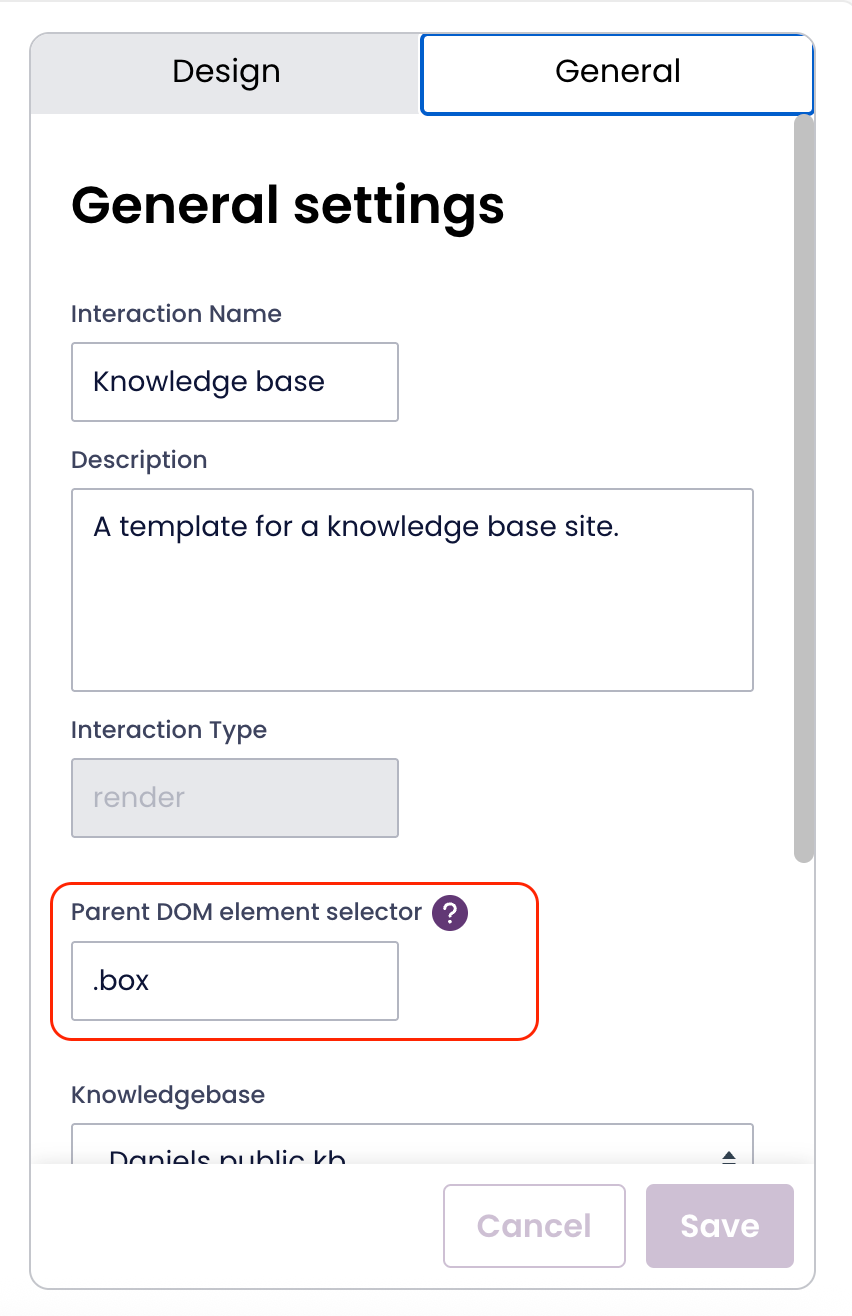
When the design is finished the next step is to incorporate the Public FAQ as a part of a website. A existing element of the website should be entered in the input field “Parent DOM element selector” in Puzzel Admin. The size, placement etcetera is handled in the code of the webpage.
In the example below the div class=”box” will display the Public FAQ.
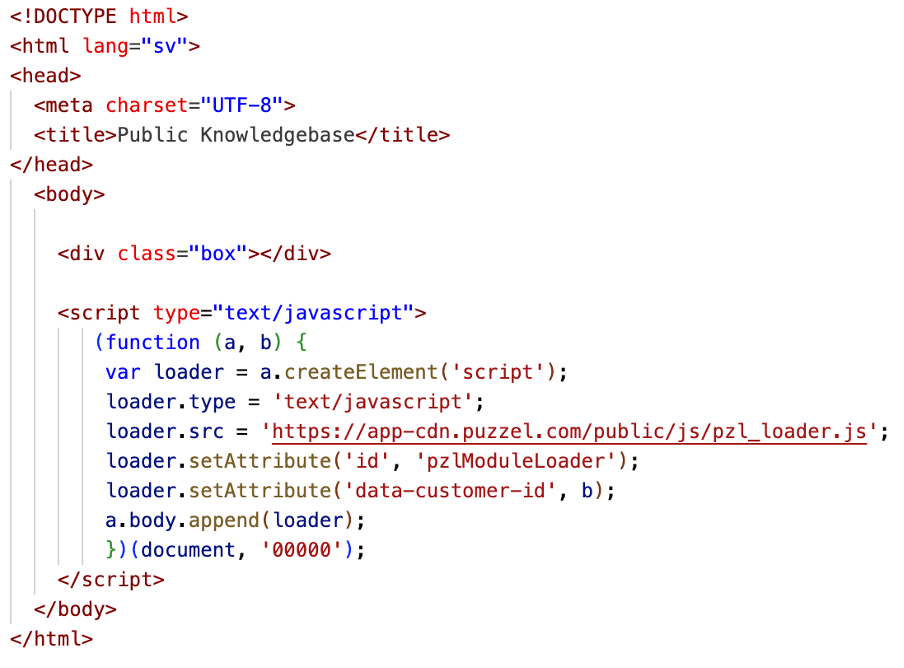
In the input field the div class is referenced in the “Parent DOM element selector” input field.
Include the Public FAQ on the Puzzel demo page
All customers are able to test the Puzzel Contact Centre Chat on a demo page:
https://demo.puzzel.com/webengage/testyourconfig/?customerKey=xxxxxx&environment=prod
Replace xxxxxx in the with your solution ID. (If you don't know the solution ID you find it in the bottom left in Puzzel Admin below the menu.)
In the code of that demopage we have included a #kb-anchor element where you can inject Puzzel Public FAQ. To utilise that add #kb-anchor to the Parent DOM element selector on the Public FAQ interaction.
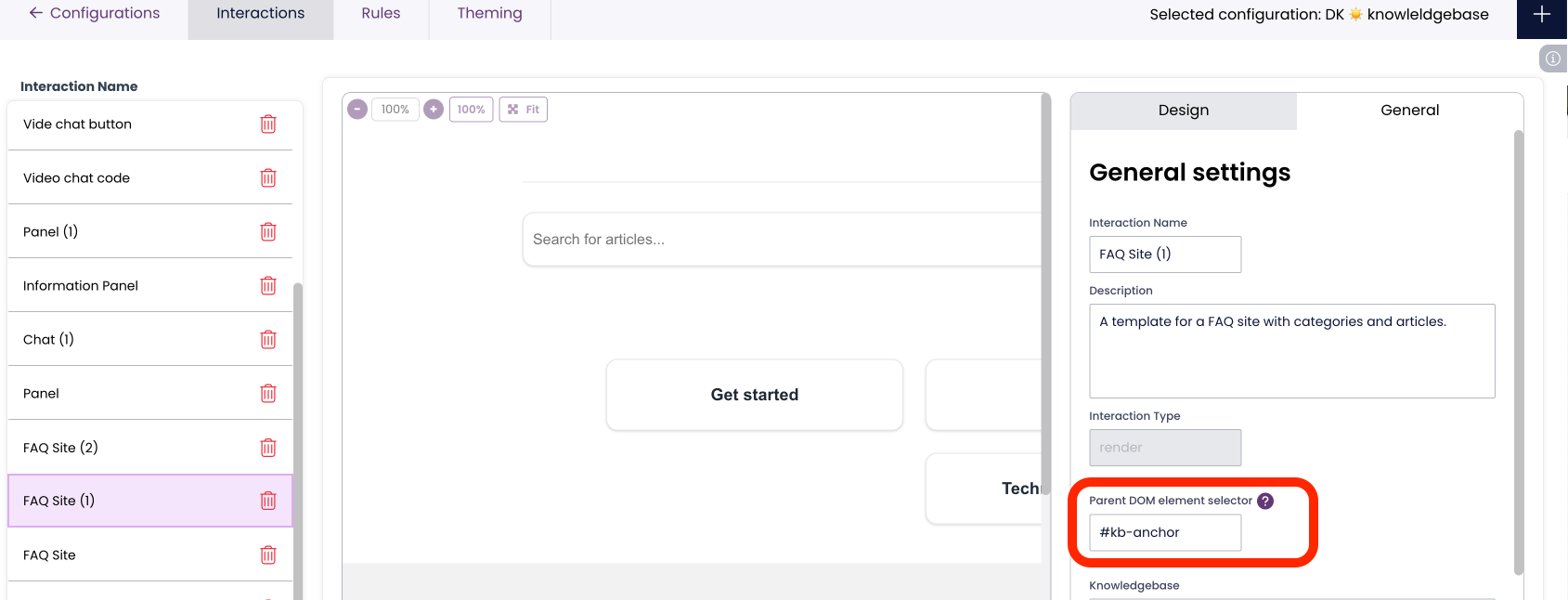
After you have made sure you have a item in Site mapping and a rule to make the Public FAQ to be loaded on the demo page. Publish the configuration and it will look like the picture below.