

Configure phone call to video chat
This article explains how to configure a panel that allows website visitors to start a video chat with an agent by entering a start code provided by the same agent. The setup is intended for scenarios when the agent and visitor are already in a regular phone call and want to switch to a video conversation.
Overview
The solution consists of:
- Panel with an input field where the visitor enters a start code
- Behavior configuration on the panel’s outer container to define the chat type and UI mode
- Behavior configuration on the input field to pass the visitor-entered code to the chat engine
- Deployment on a website with an active code snippet, rule, and site mapping
When configured correctly, the visitor can enter a code and start a video chat session with an agent.
Step 1: Create and Design the Panel
- Create a new panel in the panel designer.
- Design the panel layout to match the desired user experience (for example:
- Title such as “Video chat”
- Instruction text explaining that a code is required
- An input field for the code
- A button to start the chat)
The visual design should be similar to the example shown in the screenshots.
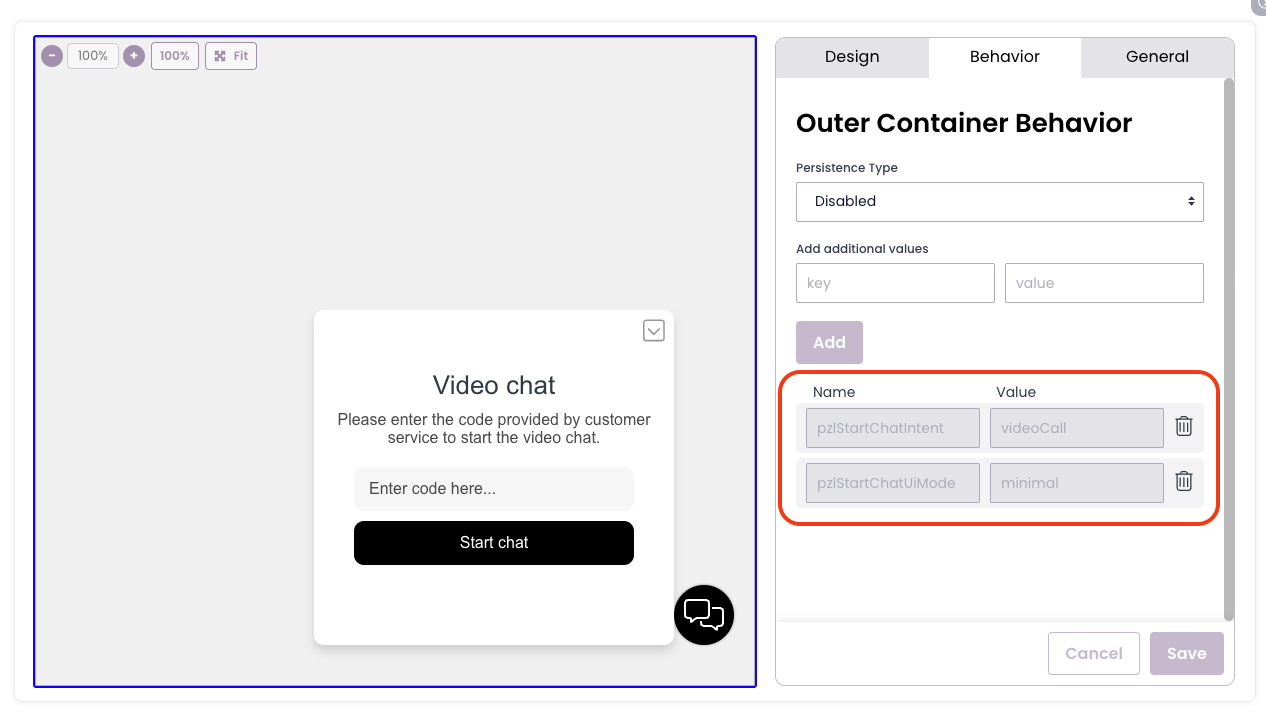
Step 2: Configure the Outer Container Behavior
- Click in the grey area beside the panel, which selects the Outer Container.
- Open the Behavior tab.
- Locate the section Add additional values.
Add the following key–value pairs:
Key Value pzlStartChatIntentvideoCallpzlStartChatUiModeminimal- pzlStartChatIntent = videoCall
Ensures that the chat starts as a video call. - pzlStartChatUiMode = minimal
Launches the chat with a minimal user interface.
- pzlStartChatIntent = videoCall
- Save the configuration.
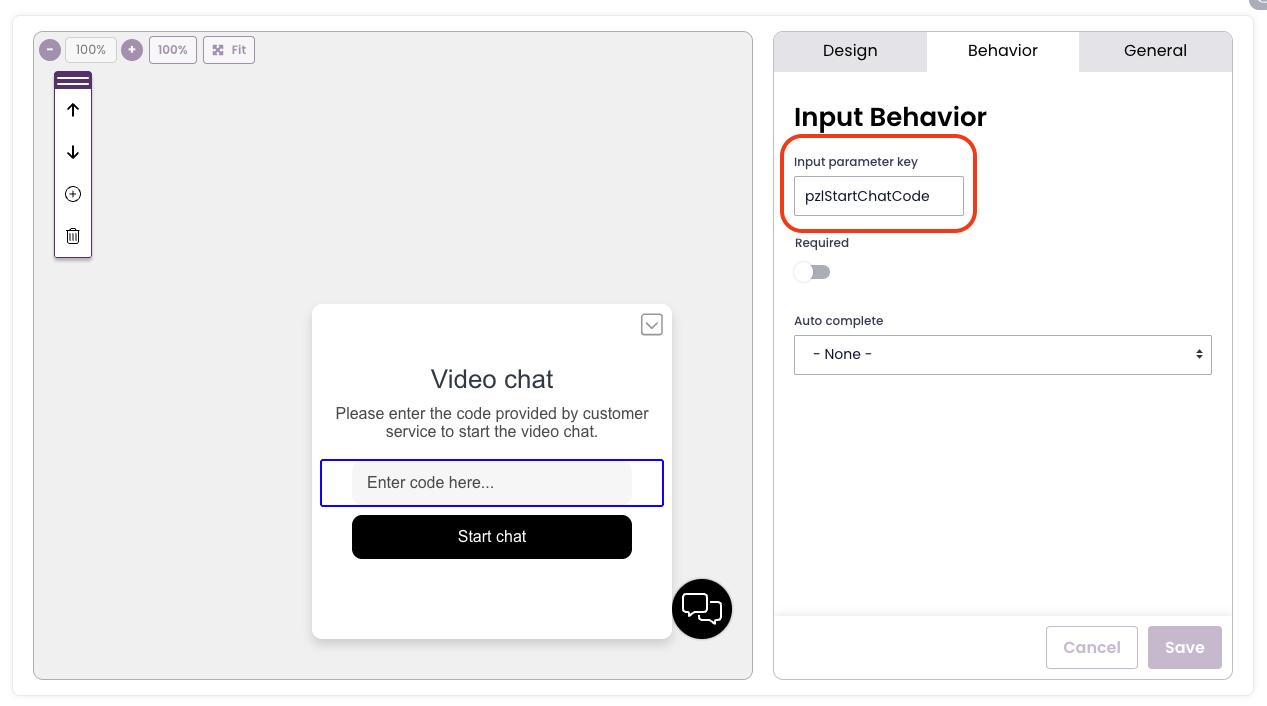
Step 3: Configure the Input Field for the Start Code
- Click on the input field where the visitor will enter the code.
- Open the Behavior tab.
- In Input Behavior, locate Input parameter key.
- Enter the following value:
pzlStartChatCode
This ensures that the value entered by the visitor is passed as the start code when initiating the chat.
- Save the configuration.
Step 4: Publish and Display on the Customer Website
To make the interaction available to visitors:
- Ensure the panel is included in a flow or configuration that is published.
- Verify that the chat code snippet is installed on the customer website.
- Confirm that:
- A rule is configured to trigger the panel.
- A site mapping is correctly set up for the relevant domain/page.
Once these prerequisites are met, the panel will be displayed on the website.
Resulting Visitor Experience
- The visitor opens the website.
- The panel is displayed according to the configured rule.
- The visitor enters the provided start code.
- The visitor clicks Start chat.
- A video chat is initiated with an agent, using a minimal UI.
Video chat is sold as a add-on and need additional configuration in Puzzel Administration for a customer to be fully enabled to use it.